Easy Checkout Fields adds your own questions to the PrestaShop checkout: a purchase order number, a pickup time slot, a gift message, a consent box… Your customers answer while they order, and you find their answers on the order, in emails, on invoices and in a spreadsheet export.
This guide is written for shop owners, not developers. It takes you step by step, with real examples. Version described: 1.1.1.
About the screenshots. They come from a demo shop in English, “Colibri & Co”, running PrestaShop 9.1. Your back office may look slightly different on another PrestaShop version. The numbers in orange circles on the screenshots match the numbered steps in the text.
1. What the module does
During checkout, PrestaShop only asks for the basics: name, address, carrier and payment. Many shops need one more piece of information, for example:
- B2B orders: the customer’s purchase order number, and the signed purchase order as a PDF.
- In-store pickup: the time slot when the customer will come.
- Gifts: “This order is a gift” and a message for the gift card.
- Delivery: a preferred delivery date, a door code, the floor.
- GDPR: a consent box, for example to share the phone number with the carrier.
Easy Checkout Fields lets you add these questions yourself, in a few clicks, without touching your theme. We call each question a field.
Where the answers go
Once the order is placed, you find the answers:
- on the order page of your back office (and you can download attached files there);
- on the order confirmation page and in the customer’s account;
- in the order emails sent to the customer and in the “new order” email sent to you;
- on the PDF invoice and on the PDF delivery slip;
- on the Collected data page of the module, with a CSV export for your spreadsheet.
For each field, you choose where its answer appears.
Compatibility and requirements
| Item | Supported |
|---|---|
| PrestaShop | 1.7.6 to 9.1 (tested up to 9.1.5) |
| PHP | 7.1 or later (tested up to PHP 8.4) |
| Checkout | The native PrestaShop checkout (4 steps) |
| Theme | Classic (tested). For another theme, see the box below. |
| Multistore | Yes: each shop has its own fields |
Not validated yet: the Hummingbird theme, the one-page checkout of PrestaShop 9.2, one-page checkout modules from other vendors, and themes that heavily change the checkout. If you use one of them, test the module on a copy of your shop first.
Plans: Free, Starter and Business
The module is sold as a subscription, with three plans. The Free plan works without a licence key and without time limit. The current prices are shown on the module page.
| Feature | Free | Starter | Business |
|---|---|---|---|
| Number of fields | 3 | Unlimited | Unlimited |
| Field types | Text, Text area, Dropdown list, Yes / No, GDPR consent, Info message | All types except File upload (13 types) | All 14 types |
| 8 placements in the checkout, autosave, checks at each step | ✓ | ✓ | ✓ |
| Answers on the order page, confirmation page, customer account and emails | ✓ | ✓ | ✓ |
| GDPR tools (psgdpr, purge, anonymisation, deletion) | ✓ | ✓ | ✓ |
| Display targeting by products, categories, customer groups and languages | – | ✓ | ✓ |
| Field required depending on another answer | – | ✓ | ✓ |
| PDF invoice, PDF delivery slip and CSV export | – | ✓ | ✓ |
| Show a field depending on another answer or on the checkout context (cart, carrier, payment, country, group, guest) | – | – | ✓ |
| Field required depending on the checkout context | – | – | ✓ |
| Display targeting by carrier | – | – | ✓ |
| File upload field | – | – | ✓ |
| Edit the answers from the order page | – | – | ✓ |
In the module, most features your plan does not include show a small padlock, usually with the name of the plan that unlocks them.
If your subscription ends, the module goes back to the Free plan. Your fields and the answers already collected are kept. In the checkout, a field whose type, display targeting or display conditions are not included in the Free plan is hidden, rather than shown to everyone: a field reserved for some customers never becomes visible to all of them by accident. Beyond the first 3 fields the plan can show, the others are hidden too. A conditional requirement simply stops applying, and the answers no longer appear on invoices and delivery slips.
2. Installation
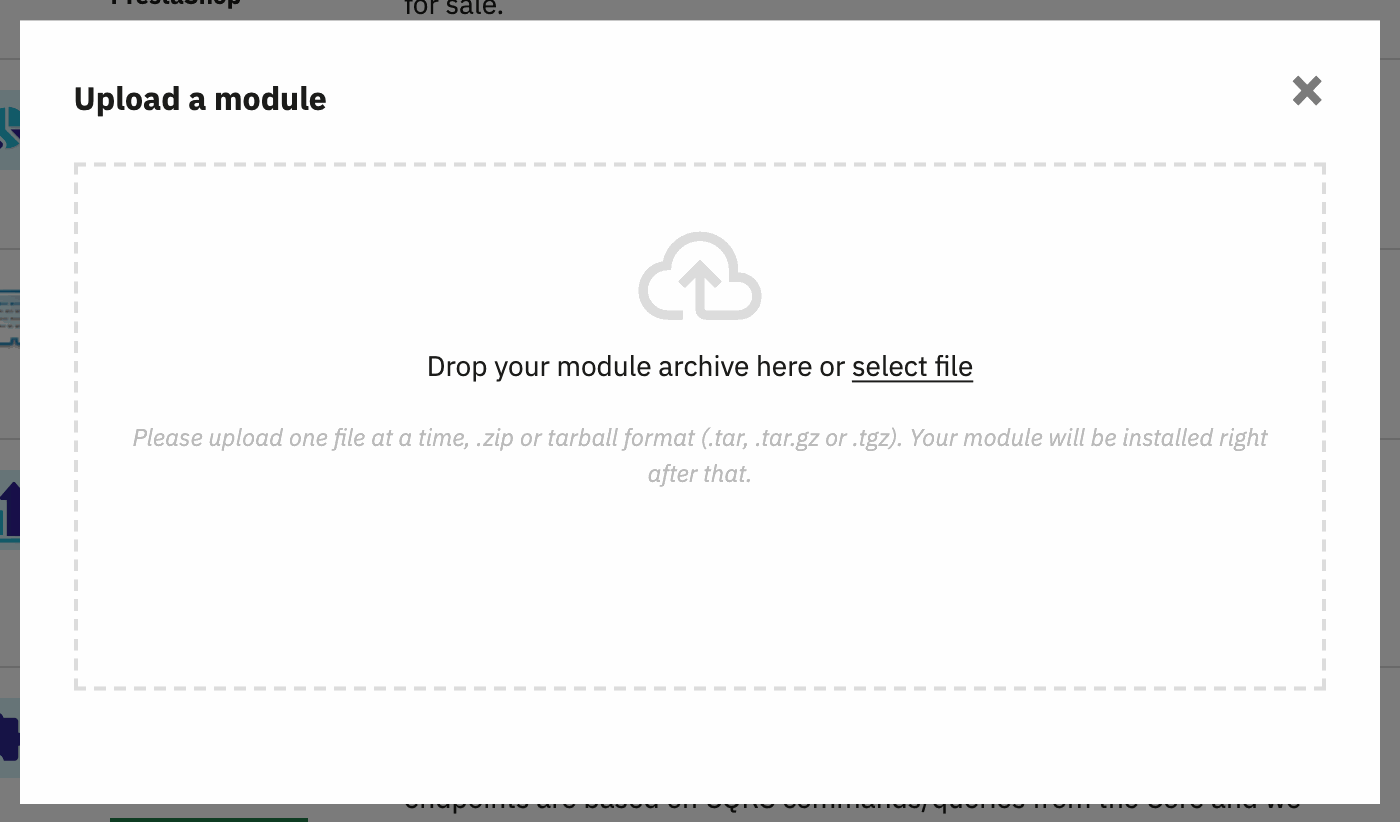
Before you start, download the module ZIP file from your customer area on modules.gekkode.com: My Licenses, then the Download button of your licence. Do not unzip it.
- In your back office, open Modules > Module Manager.
- Click Upload a module at the top right (1).
- Drop the ZIP file in the window, or click select file and choose it.
- Wait for the message “Module installed!”, then click Configure.

From now on, the module is in the Orders menu (1), under Easy Checkout Fields (2). It has four pages, shown as tabs at the top: Dashboard, Fields, Collected data and Settings.
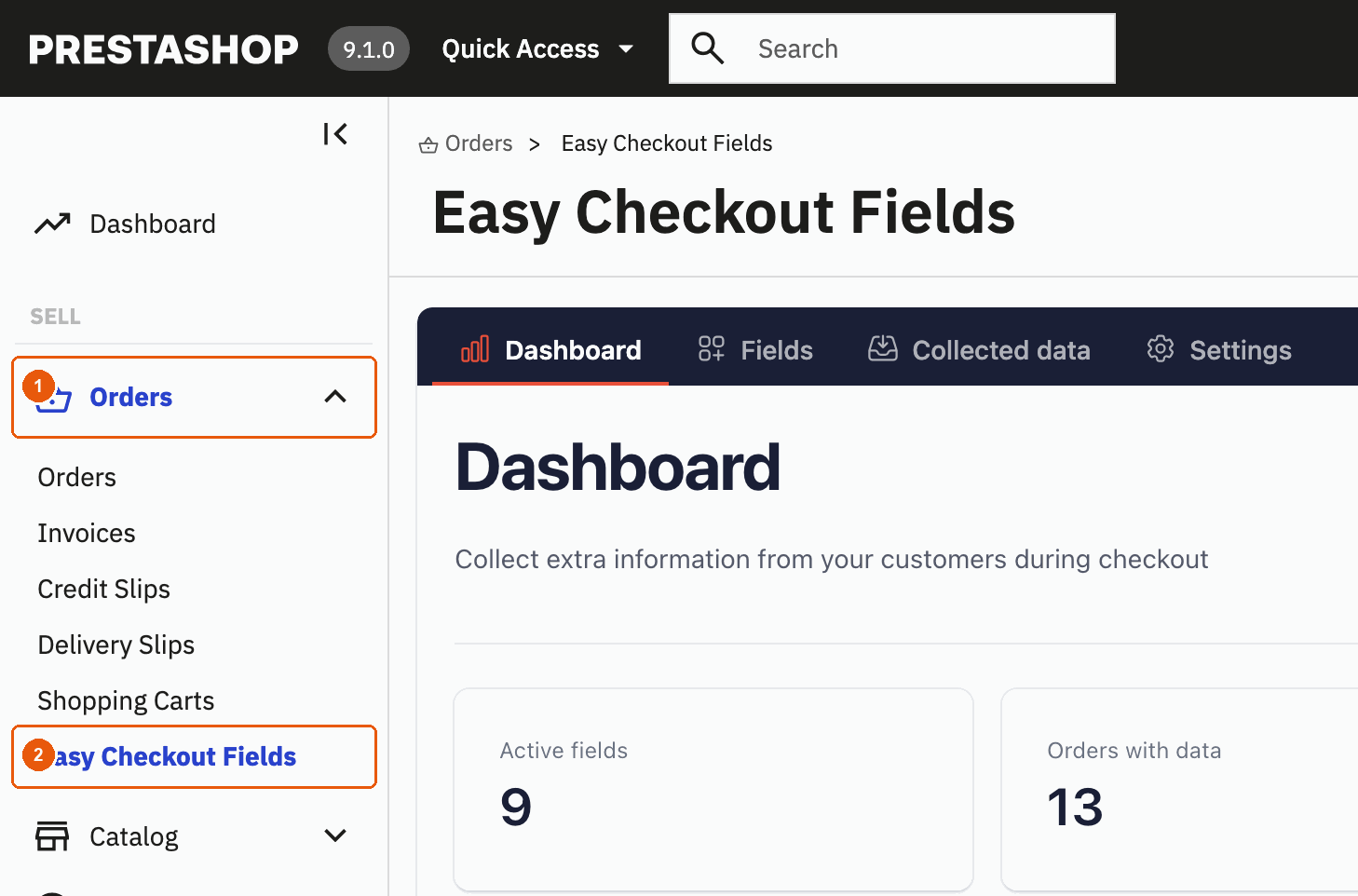
Good to know. Installing the module does not change your checkout. Nothing appears to your customers until you create and activate a field.
Licence and activation
The Free plan works as soon as the module is installed: you have nothing to activate. For the Starter or Business plan, you link your licence to your shop in two places: first in your customer area, then in PrestaShop.
In your customer area on modules.gekkode.com (always start here):
- Open My Sites and click Add a Site.
- In Site Domain Name, type your shop’s domain, for example
my-shop.com, then click Add Site. You can type it with or withouthttps://andwww.: they are ignored, sowww.my-shop.comandmy-shop.comare the same site. A subdomain, however, is a different site:shop.my-shop.comis notmy-shop.com. - Open My Licenses, open your Easy Checkout Fields licence, click Activate on a site and choose the site you just added.
- Click Copy key to copy your licence key. It looks like
XXXX-XXXX-XXXX-XXXX.
Then in PrestaShop:
- Open Orders > Easy Checkout Fields > Dashboard.
- At the bottom of the page, click the Module information panel to open it.
- Paste your key in the License Key field, then click Activate License.

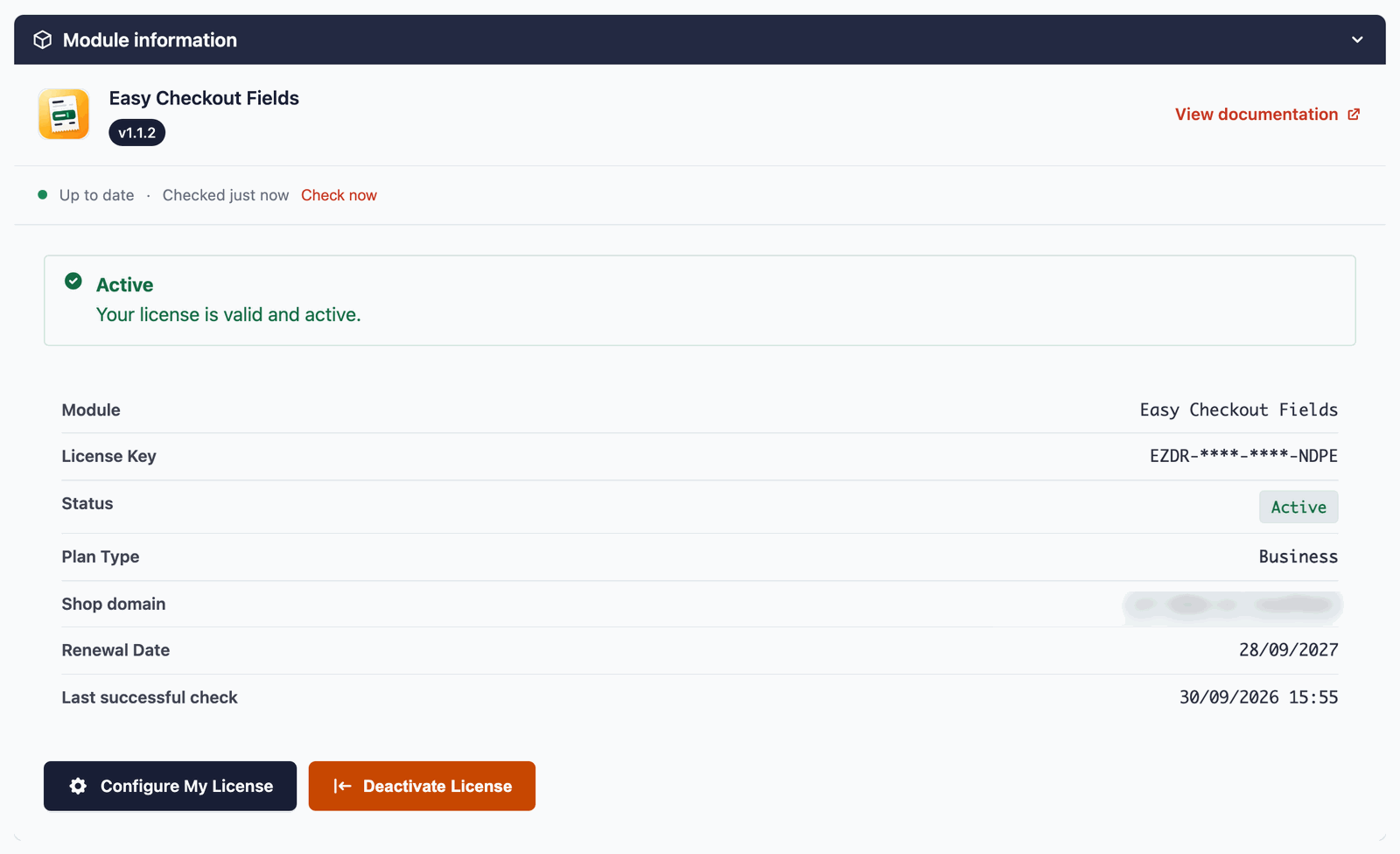
“Domain not authorized”? The domain of your shop is not linked to the licence yet. Check steps 1 to 3 in your customer area, then reload the Dashboard. The panel shows the domain your shop uses (Shop domain): it must be the one you added.
If the licence server cannot be reached (network problem on your server or ours), the module keeps your paid plan for 14 days, based on the last successful check, and retries automatically. After 14 days without an answer, it switches to the Free plan until the server answers again. A message on the module pages tells you when this happens.
If your licence expires or is suspended (for example after a failed payment), the module switches to the Free plan and a message explains what to do. Renew or fix the payment from your customer area: the paid features come back on the next check.
Updating the module
The Module information panel of the Dashboard checks for new versions. When one is available, it shows Update available and a button Install the update. The module keeps a backup of the current version and restores it automatically if anything goes wrong. You can also click Download the ZIP and install it through Modules > Module Manager > Upload a module. Both buttons need a licence key activated in the panel. Without one, download the new ZIP from My Licenses in your customer area and upload it the same way. Your fields, answers and attached files are kept.
Uninstalling
If you uninstall the module, your fields, the answers and the uploaded files are kept by default, so you can reinstall it later without losing them. Only the Settings page goes back to its default values. To delete everything when uninstalling, first turn on Delete ALL data on uninstall in Settings.
3. Your first field in 5 minutes
Example: you deliver furniture and want your customers to leave delivery instructions (door code, floor, best time). The answer must appear on the delivery slip, so the driver has it.
Step 1: open the form
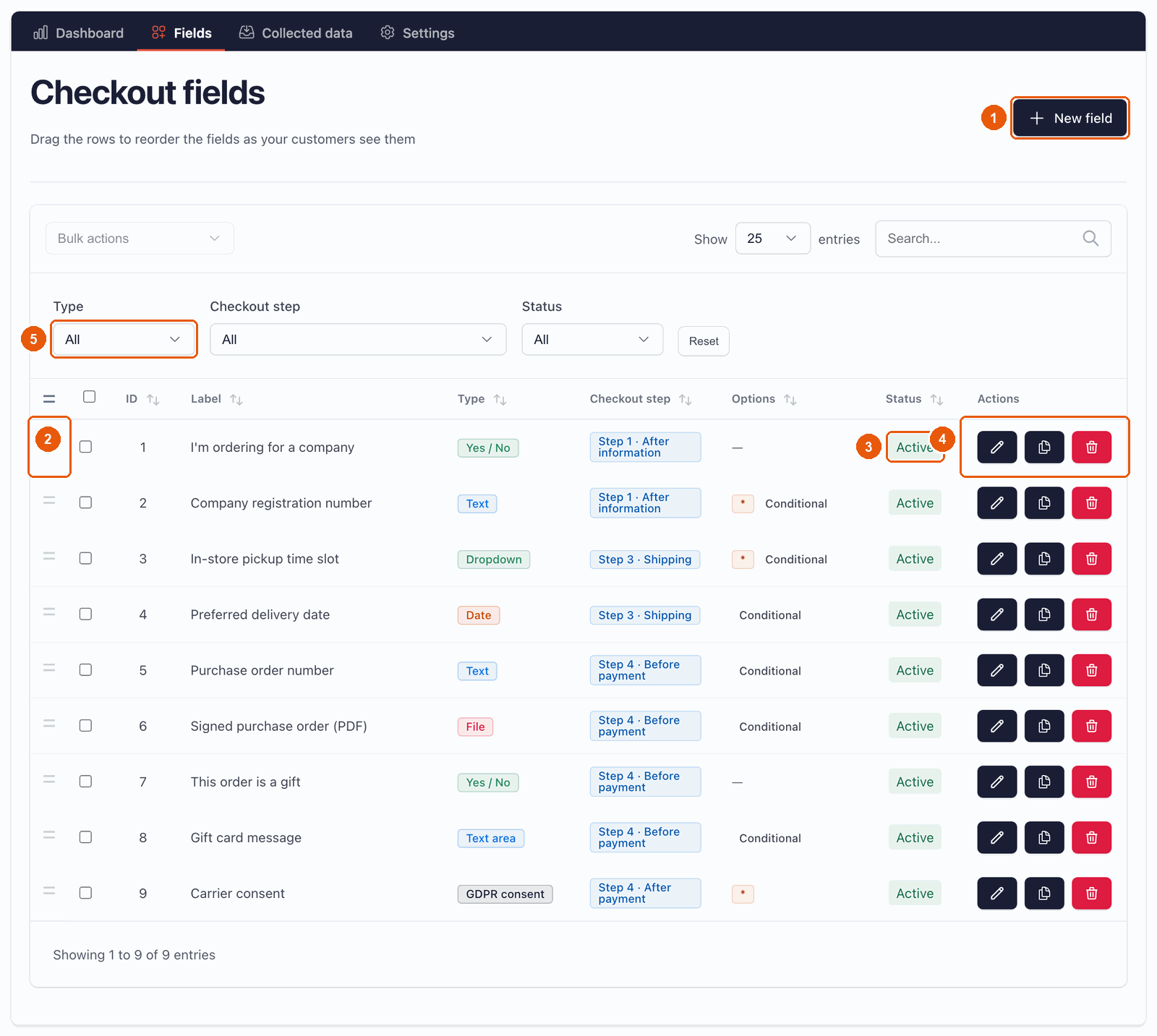
Go to Orders > Easy Checkout Fields, then the Fields tab, and click New field.
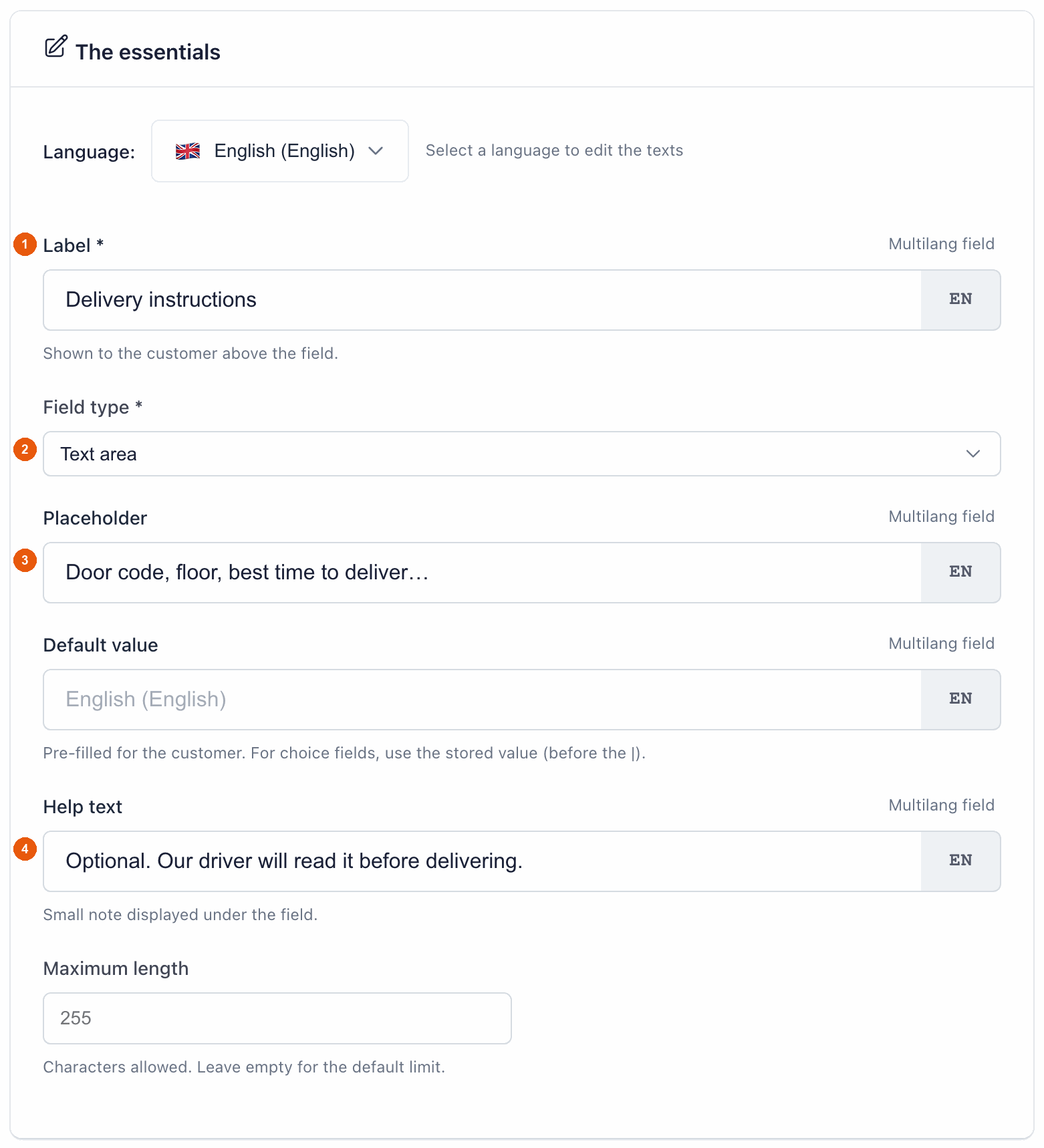
Step 2: fill in the essentials
- Label (1): the question your customer reads. Type Delivery instructions.
- Field type (2): choose Text area, a text box of several lines.
- Placeholder (3), optional: a grey example shown inside the empty box. Type Door code, floor, best time to deliver…
- Help text (4), optional: a small note under the field. Type Optional. Our driver will read it before delivering.
Step 3: choose where and when it appears
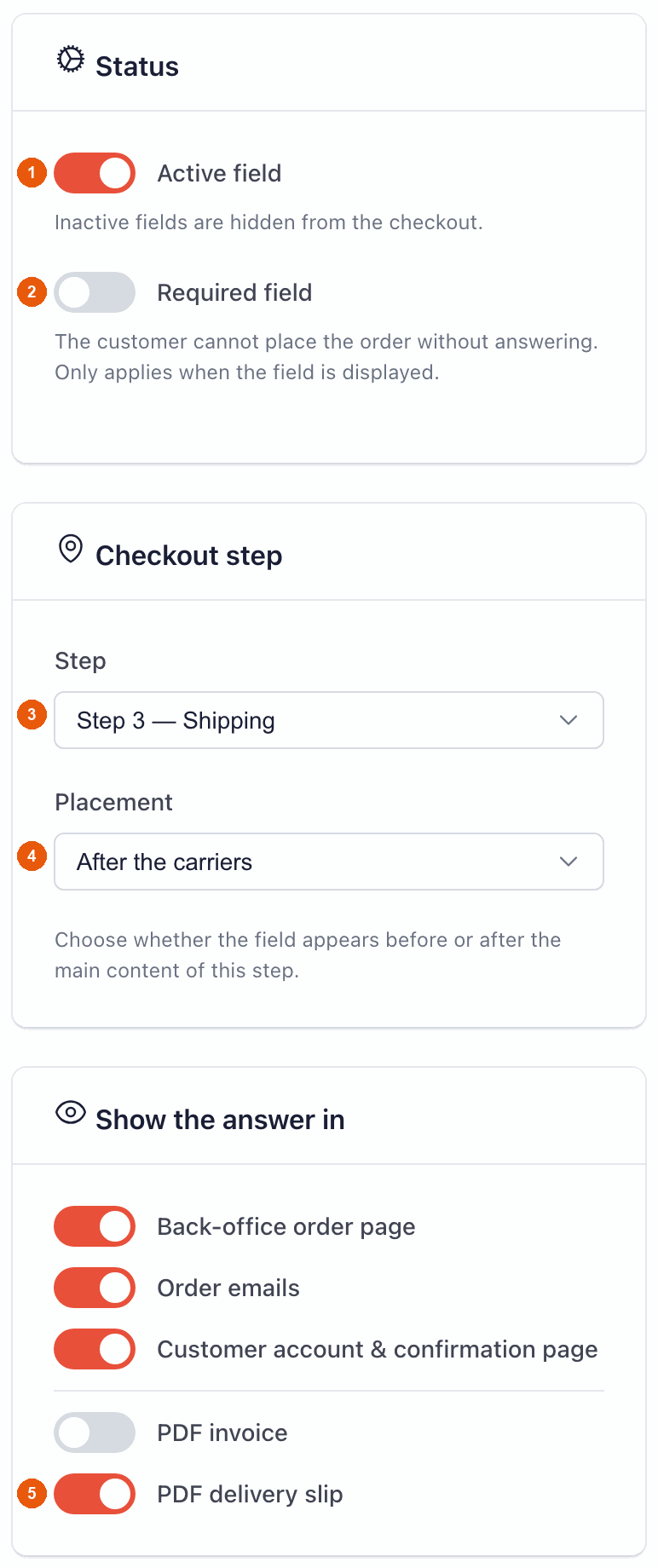
In the right-hand column:
- Active field (1) is on: the field will appear in the checkout.
- Required field (2) stays off: the customer may leave it empty. Only make a field required if you really cannot prepare the order without the answer.
- Step (3): choose Step 3 — Shipping, the step where the customer picks a carrier.
- Placement (4): choose After the carriers.
- In Show the answer in, keep the first three switches on and turn on PDF delivery slip (5).
On the Free plan, the PDF switches are locked: the delivery slip and the invoice are included from the Starter plan.
Step 4: save and check
Click Create field at the bottom of the form. The field now appears in the list, and in your checkout, under the carriers:
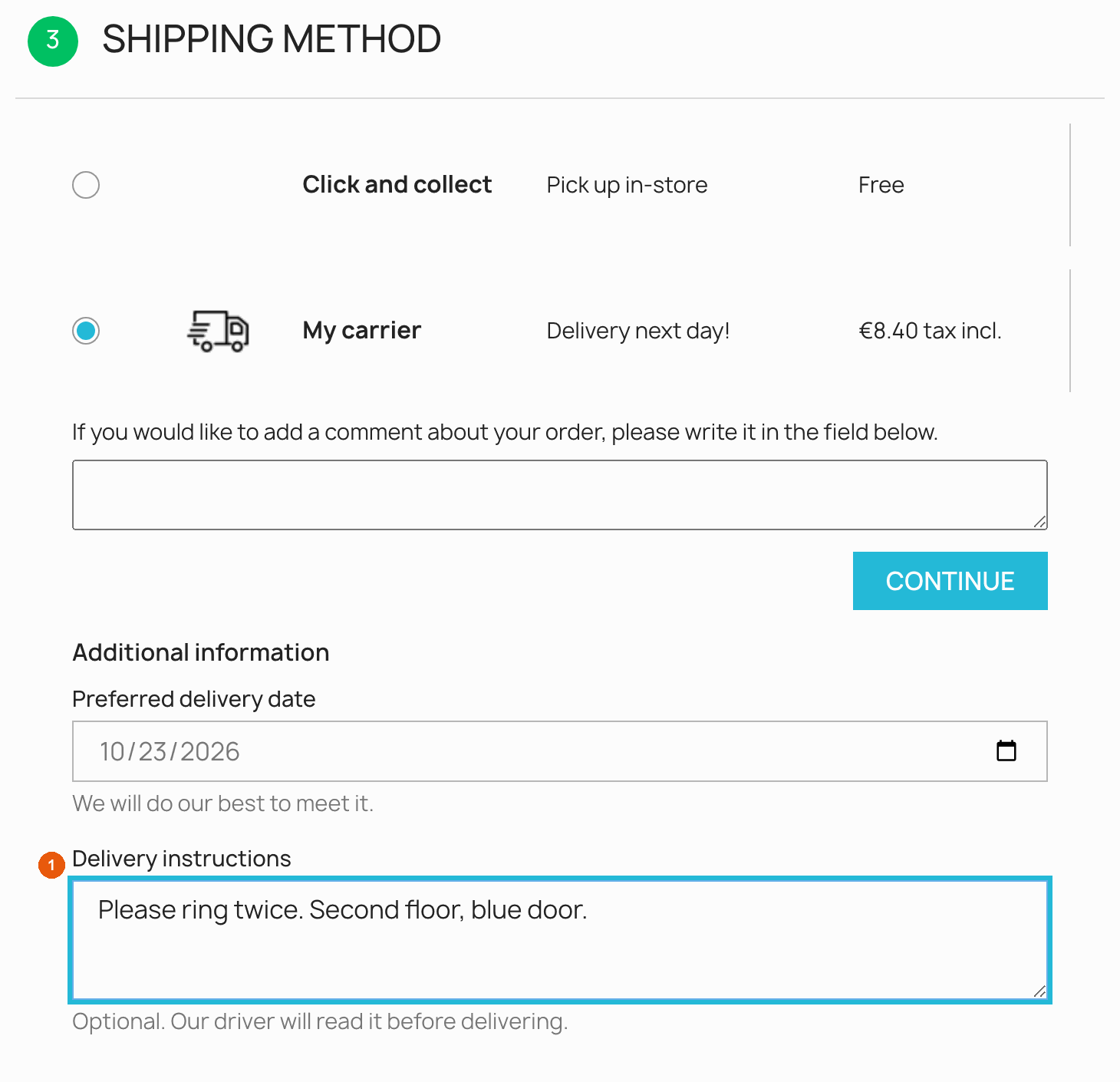
Place a test order in your shop: you will find the answer on the order page of your back office, in the emails and on the delivery slip.
Keep your checkout short. Each extra question slows your customers down. Ask only what you really use, prefer optional fields, and use conditions to show a field only to the customers concerned.
4. The 14 field types
Choose the type that matches the answer you expect. The form only shows the settings that make sense for the chosen type.
| Type | What the customer sees | Real-life example | Specific settings |
|---|---|---|---|
| Text | A one-line box | Company registration number, door code | Maximum length (255 characters by default) |
| Text area | A box of several lines | Delivery instructions, gift card message | Maximum length (2,000 characters by default) |
| Date | A date picker | Preferred delivery date, event date | Allowed dates: any date, today or later, today or earlier |
| Time | A time picker (hours and minutes) | Preferred delivery time | – |
| Number | A box that only accepts a number | Number of guests, number of boxes | Minimum value, maximum value |
| A box that checks the email format | Email of the gift recipient, of the accounting department | – | |
| Phone | A box that checks the phone number format | Phone number of the person receiving the parcel | – |
| Dropdown list | A list with one choice | Pickup time slot | Choices (one per line) |
| Radio buttons | All choices visible, only one can be picked | “Leave the parcel: at the door / with a neighbour” | Choices (one per line) |
| Checkboxes | All choices visible, several can be ticked | Gift options: wrapping, card, ribbon | Choices (one per line) |
| Yes / No | A single box to tick | “I’m ordering for a company”, “This order is a gift” | – |
| File upload | A “Choose a file” button | Signed purchase order, logo to print | Allowed extensions, maximum size (see File uploads) |
| Info message | A text, without anything to fill in | “Orders placed after 2 pm ship the next day.” | Message (simple HTML allowed, e.g. a link) |
| GDPR consent | A box to tick next to your text | “I agree that my phone number is shared with the carrier.” | Message (simple HTML allowed, e.g. a link to your privacy page) |
Writing the choices of a list
For Dropdown list, Radio buttons and Checkboxes, type one choice per line in Choices. You can simply write the text shown to the customer:
Tuesday, 10 am – 12 pm
Wednesday, 2 pm – 6 pm
Or use the form value|Text shown: the part before the | is a short code stored with the order, the part after is what the customer reads.
tuesday|Tuesday, 10 am – 12 pm
wednesday|Wednesday, 2 pm – 6 pm
saturday|Saturday, 10 am – 1 pm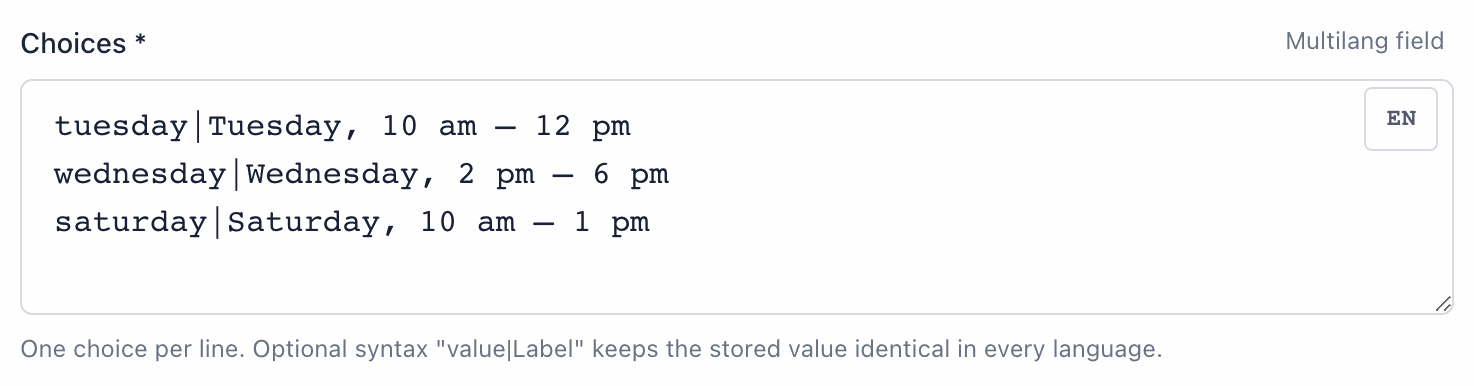
value|Text shown.Use the value|Text shown form if your shop has several languages. You translate the text after the | and keep the same code in every language. The answers then stay consistent whatever the customer’s language, and your conditions work in all languages.
Three types that behave differently
- Yes / No: if you make it required, the customer must tick it to order. For a question the customer may answer “no” to, leave it optional: an unticked box is recorded as ✗.
- GDPR consent: always required. The customer cannot order without ticking it. The answer is stored with the order (✓), as a record of the consent.
- Info message: it only displays your text. It collects nothing, so it never appears in orders, emails or documents.
5. Checkout steps and placement
The native PrestaShop checkout has 4 steps. For each field, you choose the Step, then the Placement within that step: before or after its main content. That makes 8 possible places.
| Step | What the customer does there | Placement “before” | Placement “after” |
|---|---|---|---|
| Step 1 — Personal information | Gives name and email, logs in or orders as a guest | Before the customer information form | After the customer information |
| Step 2 — Addresses | Enters or chooses the delivery address | Before the address selection | After the address selection |
| Step 3 — Shipping | Chooses a carrier | Before the carriers | After the carriers |
| Step 4 — Payment | Chooses a payment method and confirms the order | Before the payment methods | After the payment methods |
Which step should I choose? Ask the question where it makes sense for the customer:
- “Are you ordering for a company?”: step 1, with the personal information.
- A door code or a floor: step 2, after the address.
- A pickup time slot or a preferred delivery date: step 3, after the carriers.
- A purchase order number, a gift message, a consent: step 4, before the payment methods. If you hesitate, this is the safest place: the customer has made all their choices.
Inside the same place, fields appear in the order of the Fields list. Drag the rows to change it.
How answers are saved and checked
- Saved while typing. Each answer is saved with the cart as the customer types. Nothing is lost if they go back to a previous step.
- Checked at each step. When the customer clicks Continue, the module checks the fields of that step: a required field left empty or a wrong format (an invalid email, a date in the past…) is shown in red with an explanation.
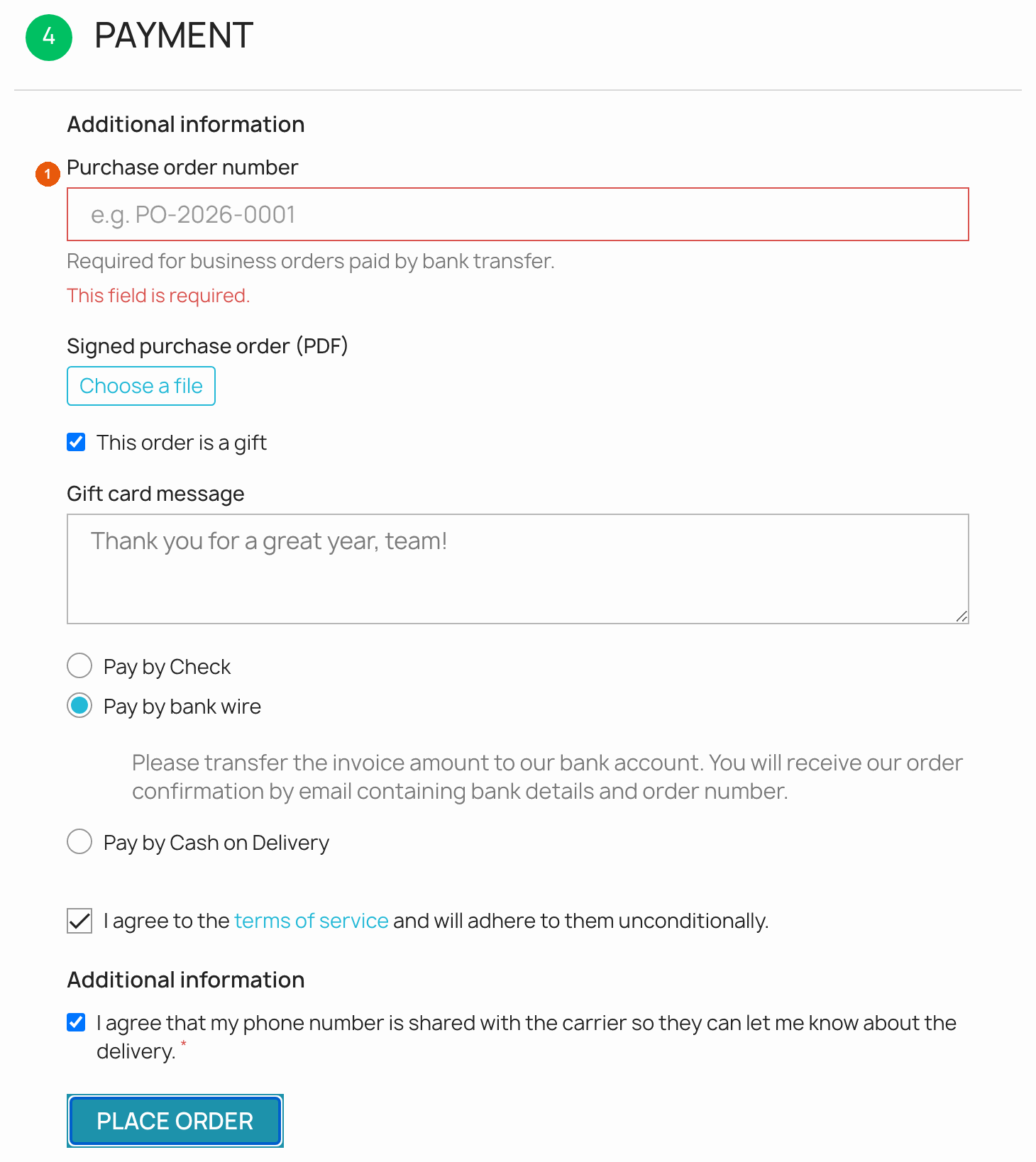
- Checked again before payment. When the customer confirms the order, every visible field of the checkout is checked again, on the server too. A field with a problem turns red with its own message (for example “This field is required.”) and the page scrolls to it.
- A hidden field never blocks the order. A field hidden by its conditions is never checked, and what the customer types while it is hidden is not saved.
6. Conditions: show a field only when it is useful
A condition is a rule such as “show this field only if the customer pays by bank transfer”. Conditions keep your checkout short: each customer only sees the questions that concern them.
In the field form, you will find two cards:
- Conditional display: the field is shown only when the rules are met. Otherwise it is hidden and never required.
- Conditionally required: the field is always shown, but it becomes required only when the rules are met.
The two cards work independently. You can use one, the other, or both.
How a rule is written
A rule has three parts, chosen from lists, left to right: what to look at, how to compare, and the value. For example: Selected payment method · is · ps_wirepayment.
When a card has several rules, choose at the top whether the field needs ALL conditions are met (every rule must be true) or AT LEAST ONE condition is met (one true rule is enough).
Example 1: purchase order number for companies that pay by bank transfer
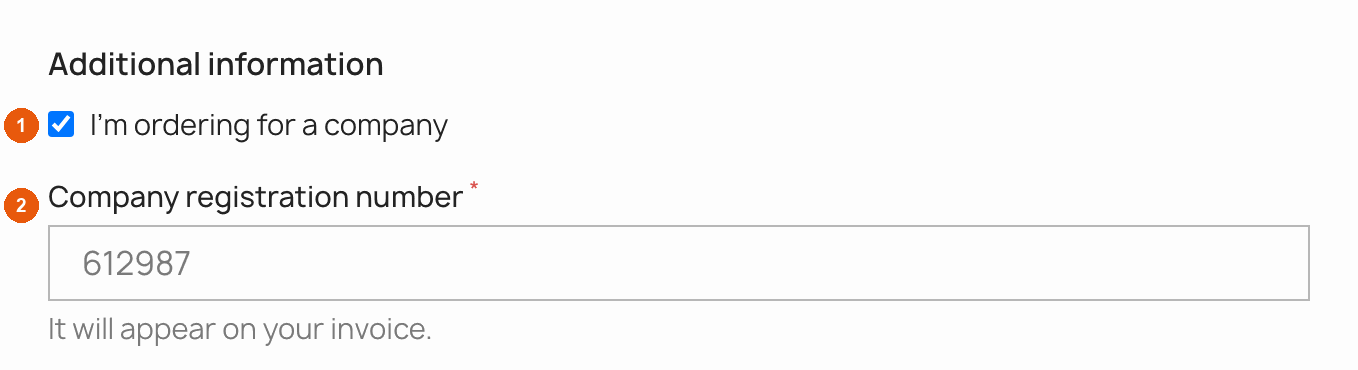
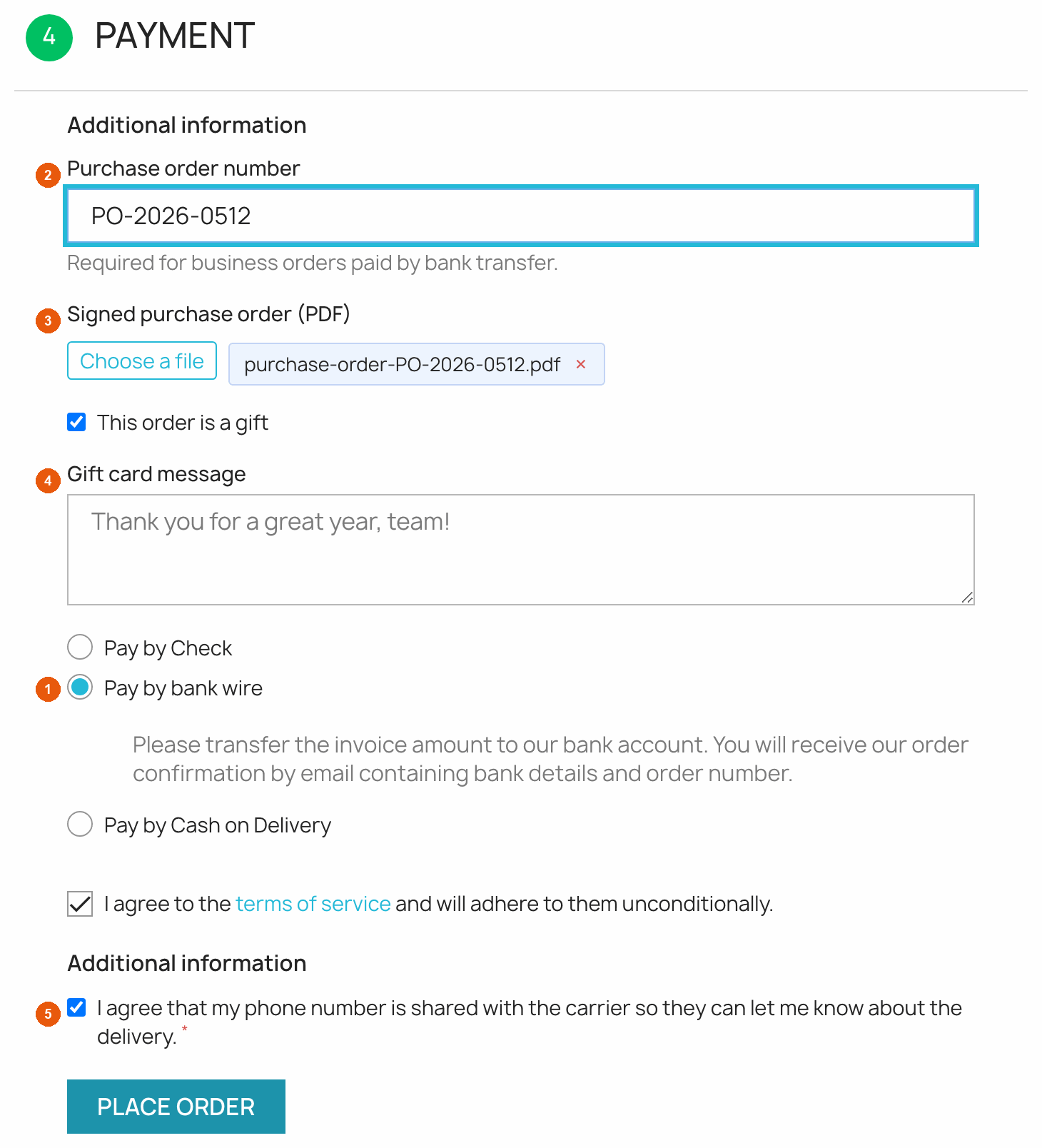
Customers who order for a company and pay by bank transfer must give their purchase order number. Other customers must not see this question. The demo shop uses a Yes / No field “I’m ordering for a company” at step 1, then a Text field “Purchase order number” at step 4.
- Open the “Purchase order number” field. In Conditional display, turn on Enable conditions for this field (1).
- In Show the field when, keep ALL conditions are met (2).
- Click Add a condition and set: Another field · I’m ordering for a company · is · Yes (3). In the value list, Yes is labelled “Oui / Yes”.
- Add a second condition: Selected payment method · is ·
ps_wirepayment(4). This is the technical name of the bank transfer module (see the table below). - In Conditionally required, turn on Enable conditional requirement (5) and add: Selected payment method · is ·
ps_wirepayment(6). - Leave Required field off in the right-hand column, then click Save changes.
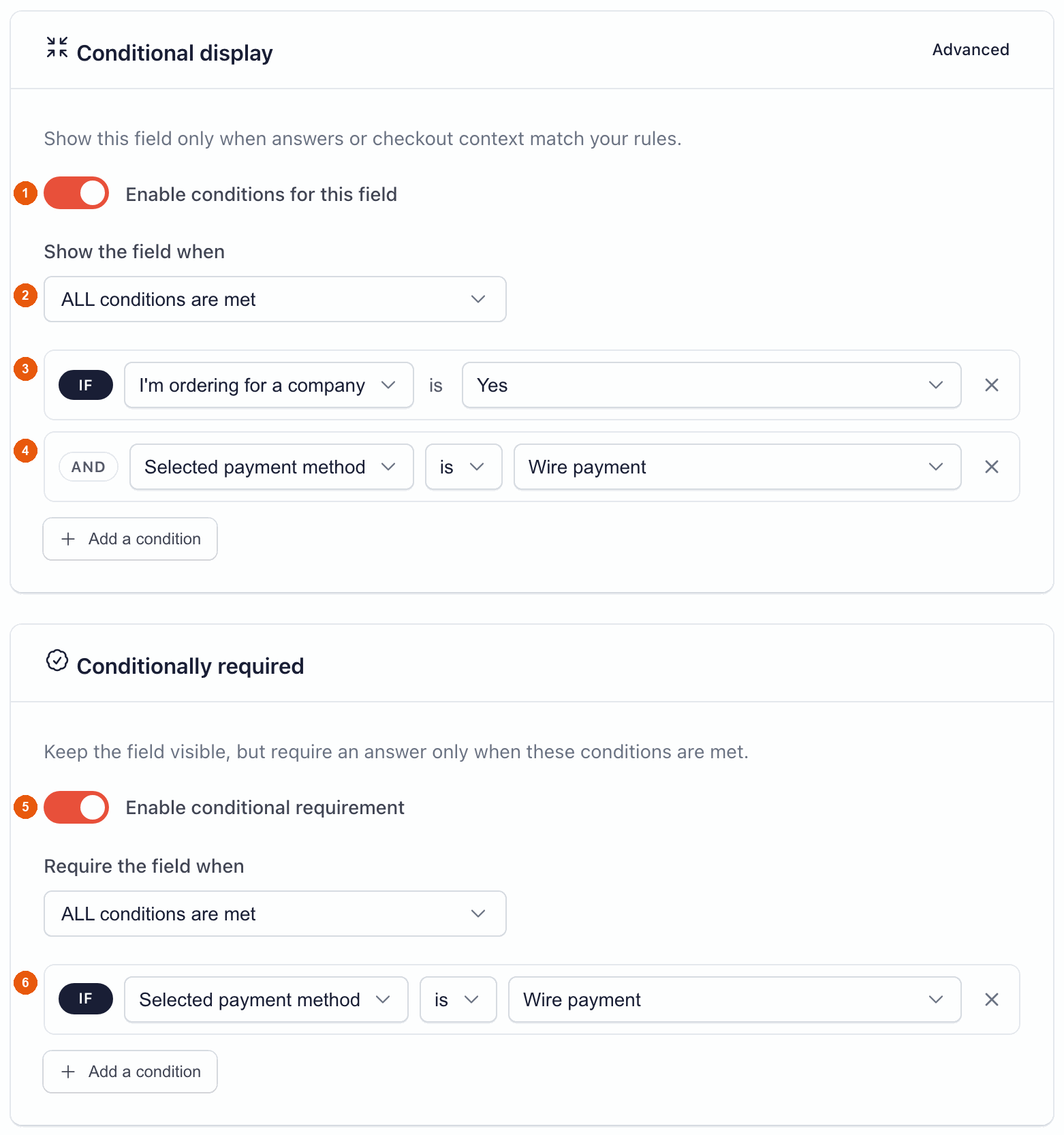
Leave “Required field” off when you use “Conditionally required”. “Required field” makes the field required every time it is shown, whatever your rules. Conditional requirement only works when it is off.
Result in the checkout: the customer ticks “I’m ordering for a company” at step 1, then chooses bank transfer at step 4, and the purchase order number appears, with the file upload for the signed purchase order.
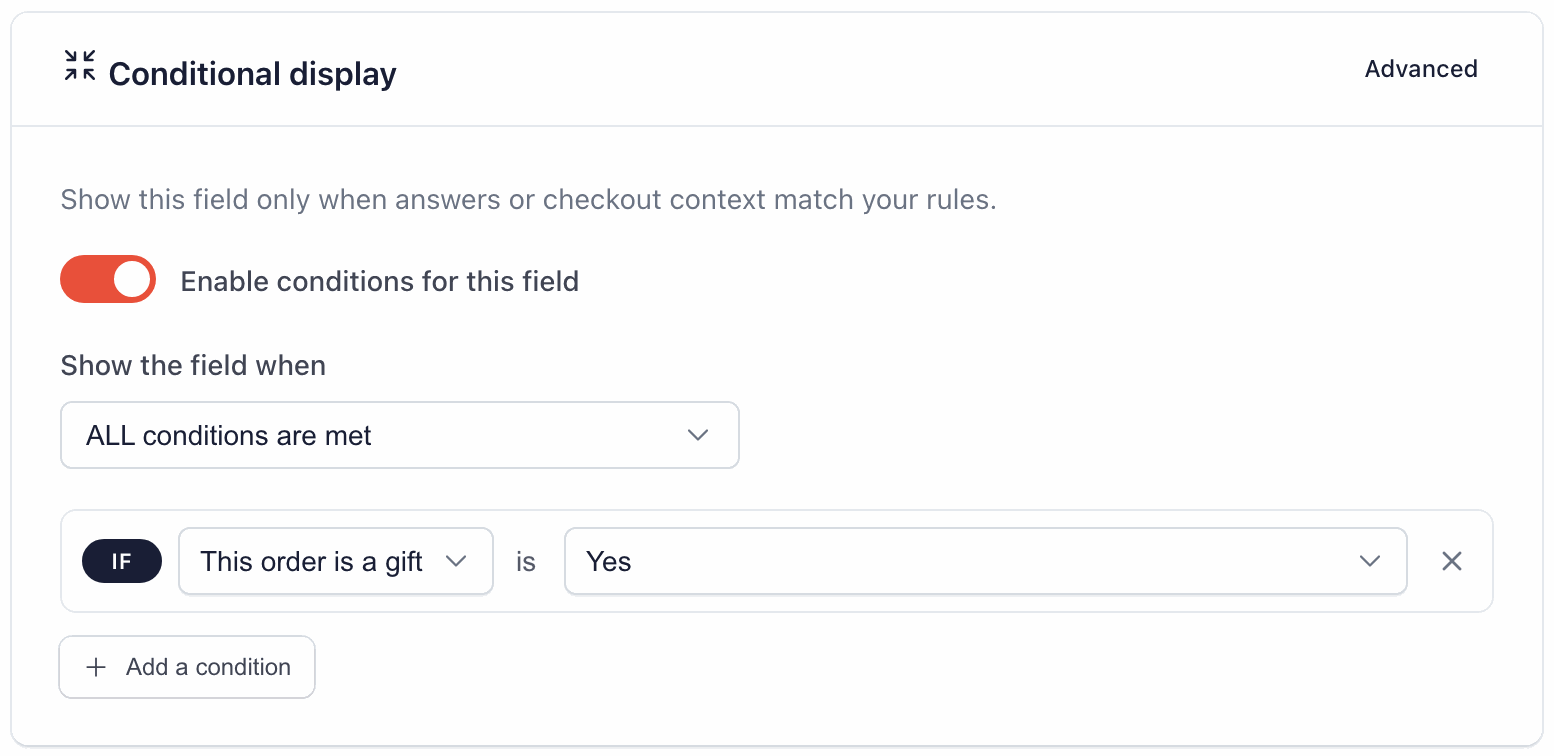
Example 2: gift card message
Create a Yes / No field “This order is a gift”, then a Text area field “Gift card message” at the same step. On the message field, add one display condition: Another field · This order is a gift · is · Yes. The message box only appears when the customer ticks “This order is a gift”.
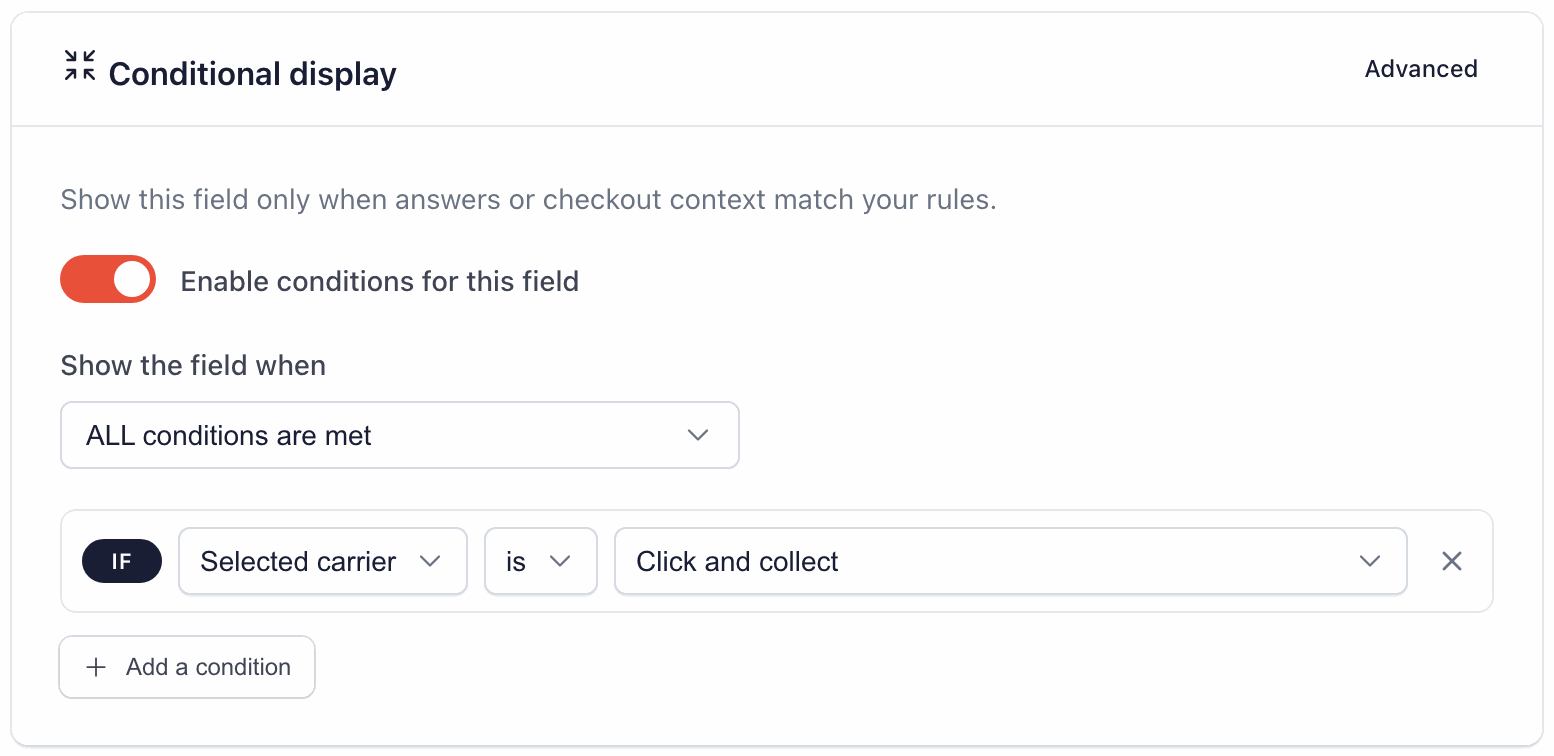
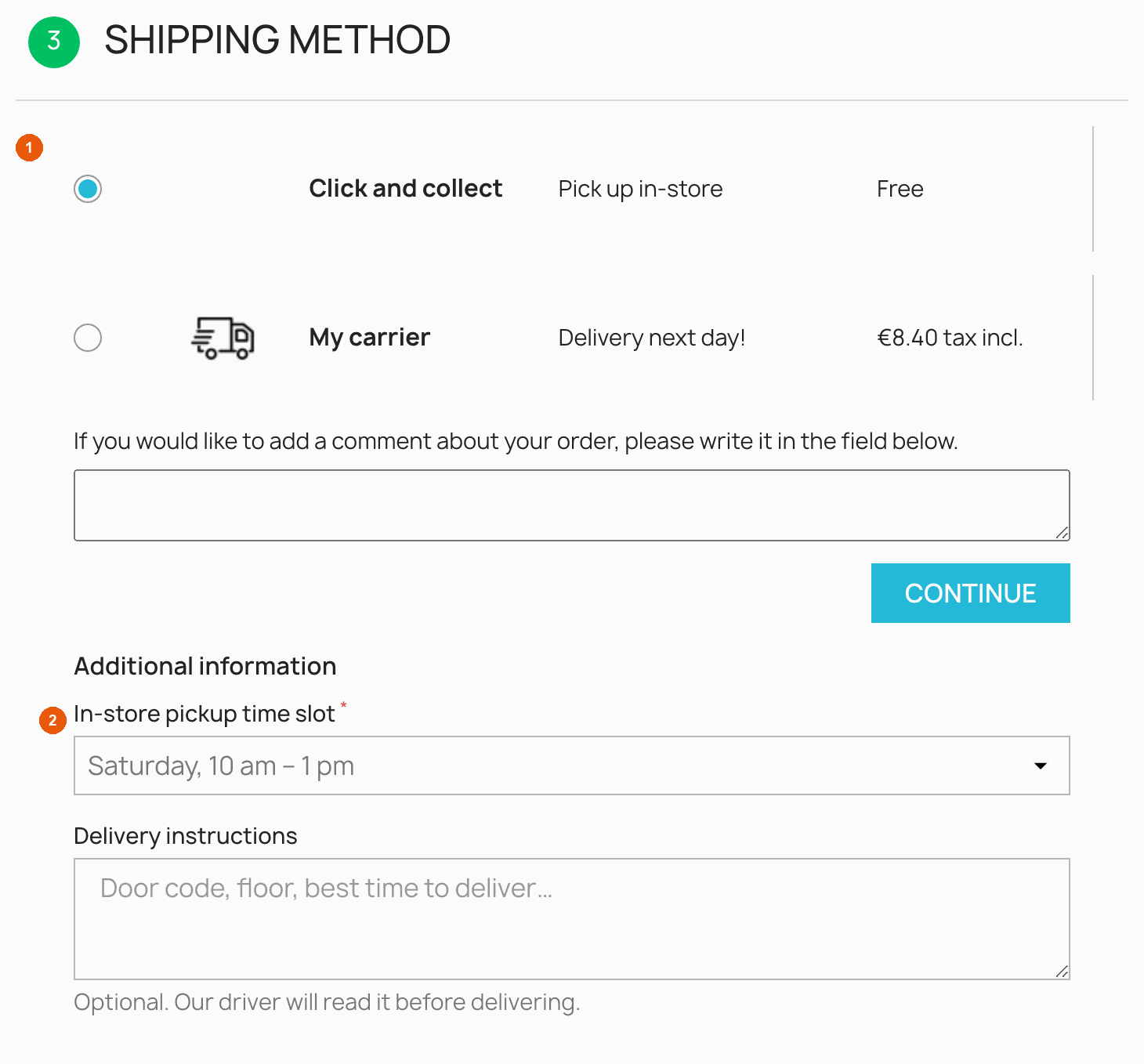
Example 3: pickup time slot for in-store pickup
The “In-store pickup time slot” field is a Dropdown list at step 3, after the carriers. Its display condition is Selected carrier · is · 1, where 1 is the number of the “Click and collect” carrier in the demo shop. The slot appears as soon as the customer selects in-store pickup, and disappears if they choose delivery.
What a rule can look at
The first list of a rule offers 9 choices. For some of them, you type a number or a technical name: the table tells you where to find it.
| Choice | What it looks at | What to type as the value |
|---|---|---|
| Another field | The customer’s answer to another field | For Yes / No: choose Yes or No. For a list: choose one of its choices. Otherwise type the text to compare. |
| Cart total | The amount of the cart with taxes, without shipping costs | An amount, with a dot for decimals: 100 or 99.90 |
| Products in cart | The products in the cart | A product ID, shown in the ID column of Catalog > Products |
| Categories in cart | The categories of the products in the cart | A category ID, shown in Catalog > Categories |
| Selected carrier | The carrier chosen at step 3 | The carrier number, shown in the ID column of Shipping > Carriers (see the FAQ if you have edited the carrier) |
| Selected payment method | The payment method chosen at step 4 | The technical name of the payment module, for example ps_wirepayment (bank transfer), ps_checkpayment (check), ps_cashondelivery (cash on delivery). To find it, click Configure on the payment module in the Module Manager: the name appears in the page address, right after configure. |
| Delivery country | The country of the delivery address | A country ID, shown in International > Locations > Countries |
| Customer group | The groups of the customer | A group ID, shown in Customers > Groups. By default: 1 = Visitor, 2 = Guest, 3 = Customer. A customer who orders without an account counts as a Visitor here: to target them, use Guest checkout instead. |
| Guest checkout | Whether the customer orders without an account | Choose Yes or No |
How to compare
| Operator | The rule is true when… | Example |
|---|---|---|
| is | the value is exactly the one you typed. For the products, categories and groups, one of them is enough. | Selected carrier · is · 1 |
| is not | the value is different | Delivery country · is not · 8 |
| contains | the answer contains your text, capital letters or not | Another field (Company name) · contains · Ltd |
| does not contain | the answer does not contain your text | Another field · does not contain · test |
| is empty | the customer has not answered, a Yes / No box is not ticked, or the answer is 0 | Another field (VAT number) · is empty |
| is filled | the customer has answered | Another field (Door code) · is filled |
| is greater than | the number is strictly higher | Cart total · is greater than · 500 |
| is less than | the number is strictly lower | Cart total · is less than · 50 |
Rules to know
- An answer typed while the field was shown stays with the order. For example, if a customer writes a gift message and then unticks “This order is a gift”, the message they had typed is still saved with the order.
- Which fields can be used in a rule? An active field that has no display condition itself, and that is neither a File upload nor an Info message. Conditions have one level only: a field shown under condition cannot control another field. If the list is empty, the form says so: create the other field first.
- A choice not made yet counts as “unknown”. Until the customer has chosen a carrier or a payment method, a field that depends on it stays hidden. It appears as soon as the choice is made, without reloading the page.
- A field can only depend on what is already known. Put the field at the same step as the choice it depends on, or later. For example, a field that depends on the payment method belongs at step 4.
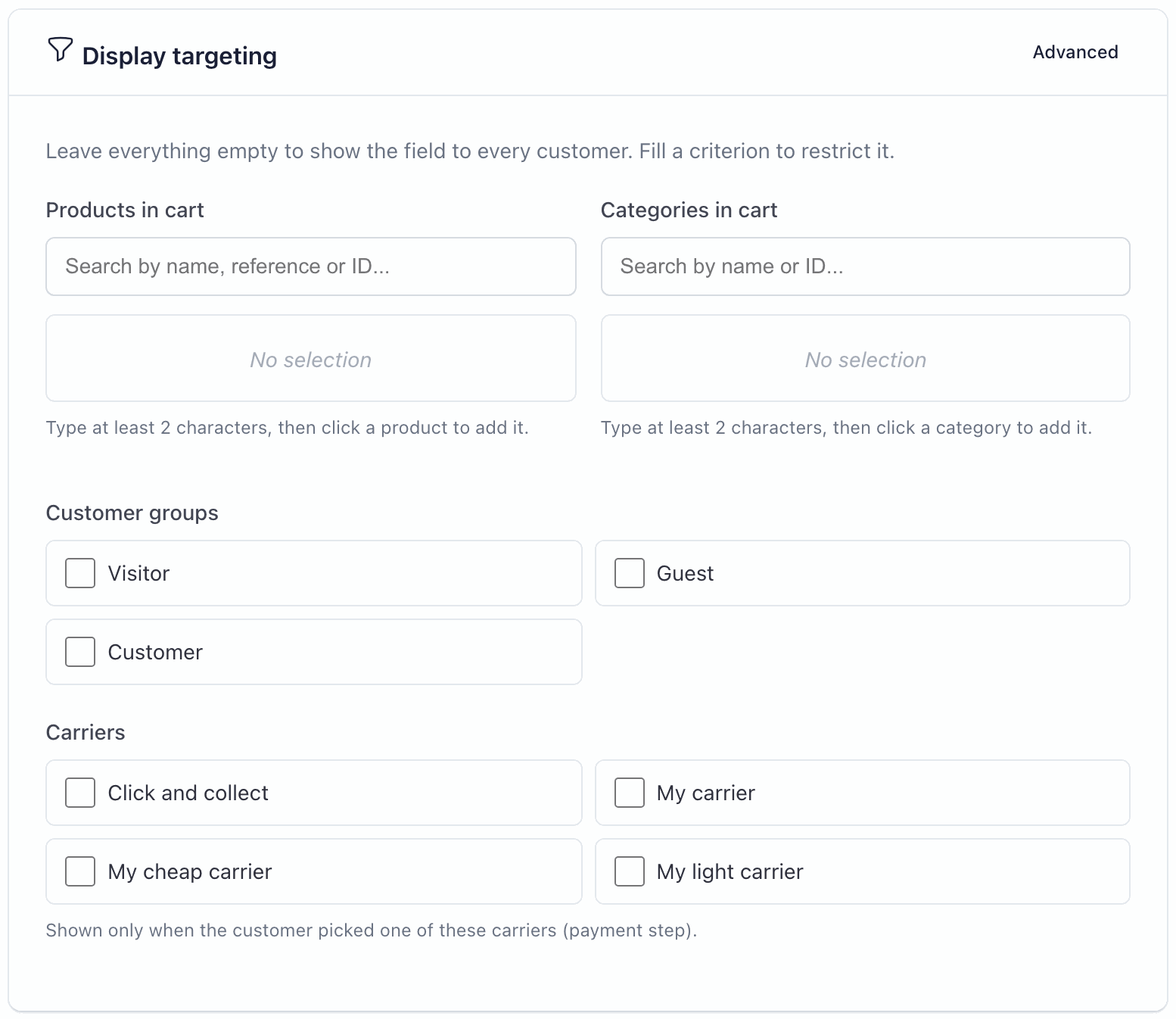
Display targeting: reserve a field for some customers
The Display targeting card is a simpler way to limit a field. Leave everything empty to show the field to every customer, or fill in one or more criteria:
- Products in cart and Categories in cart: type at least 2 letters, then click the product or category to add it. The field appears if the cart contains at least one of them.
- Customer groups: tick the groups allowed to see the field.
- Shop languages (only when your shop has several languages): tick the languages in which the field appears.
- Carriers: tick the carriers. This criterion is meant for fields shown at step 4, once the carrier is chosen. For a field at step 3 that must react to the carrier the customer clicks, use a Selected carrier condition instead (example 3).
When you fill in several criteria, all of them must be met. Inside one criterion, one match is enough.
Targeting or condition? Targeting is decided when the checkout page loads, from the cart and the customer. A condition reacts live to what the customer does in the page: ticking a box, choosing a carrier or a payment method.
7. Translating the texts
The texts of your fields
Every text you type in a field (label, placeholder, help text, choices, message) exists in each language of your shop. These inputs show the mention Multilang field.
- At the top of the The essentials card, choose a language in Language.
- Type the texts in that language.
- Repeat for each language, then save.
- If you leave the label empty in a language, the module copies the label of another language, so the question is never blank.
- The other texts are not copied. Fill in the Choices of a list and the Message of an Info message or a GDPR consent in every language: otherwise the list is empty, or the box has no text, for customers of that language.
- For lists, use the
value|Text shownform (see Writing the choices).
The texts of the module
The module also displays its own texts to customers: the “Additional information” title, the “Choose a file” button and the error messages (“This field is required.”…). They are provided in English, French, Spanish, Italian, German and Polish.
In version 1.1.1, these texts cannot be changed from the back office: the PrestaShop translation page (International > Translations) does not list them. In a language other than these six, customers see them in English. If the “Additional information” title does not suit you, you can hide it in Settings.
The language of the module’s back office
The module’s back office follows the language of the employee who is logged in. It is available in English and in French; in the other languages, it is shown in English.
The answers are recorded with the label in the customer’s language at the time of the order. If a customer ordered in French, you will read the French label on the order page.
8. Where to find the answers
In each field, the Show the answer in card tells where its answer appears. By default, the first three places are on. Empty optional answers are not shown to the customer, in emails or on documents; the order page of your back office shows them too, empty. An unticked Yes / No box appears as ✗.
On the order page of your back office
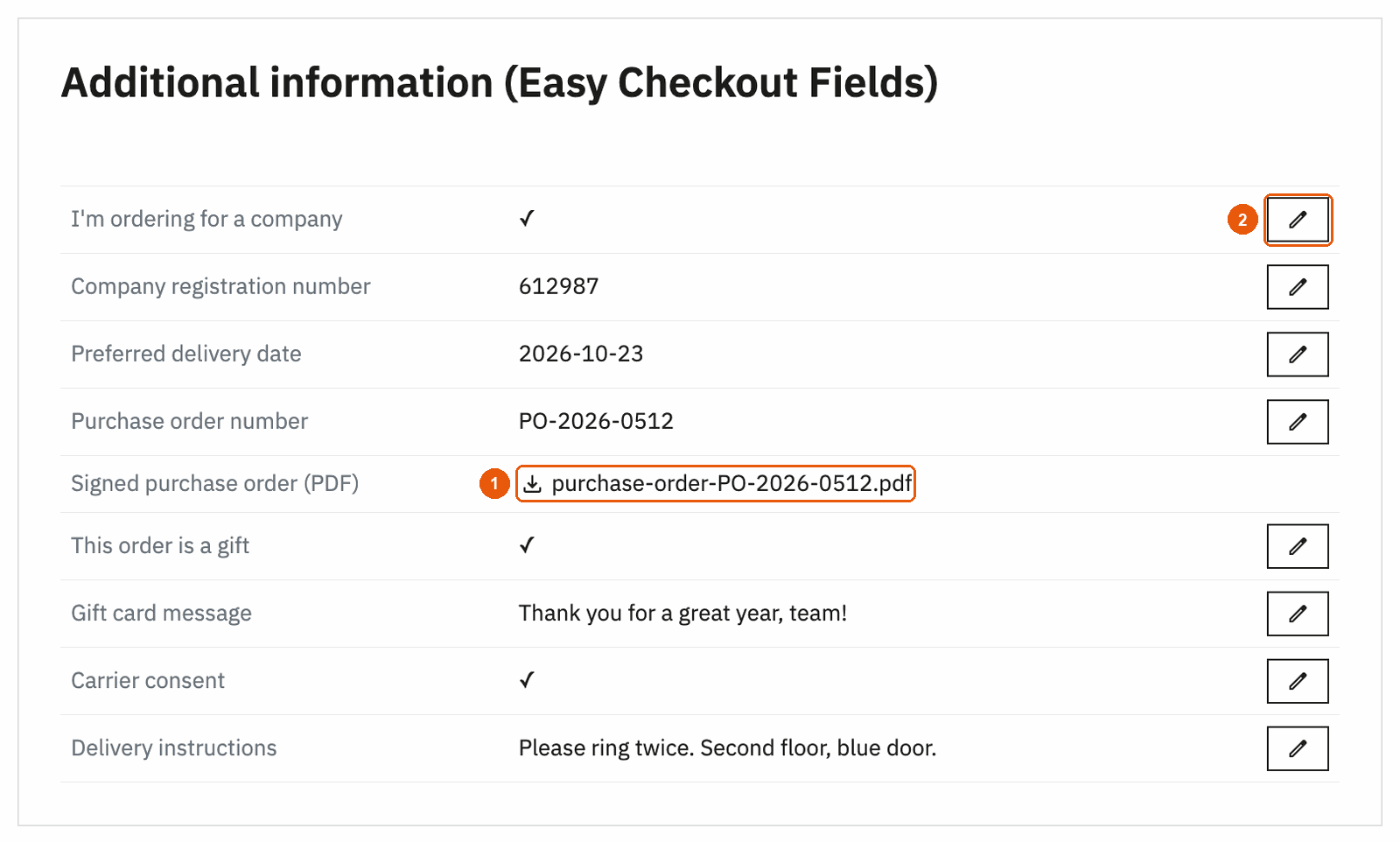
Open the order in Orders > Orders. The Additional information (Easy Checkout Fields) block lists the answers. Click a file name to download it (1).
To correct an answer given by mistake, click the pencil next to it (2), change the value and click Save. Files cannot be edited.
Editing answers from the order page is included in the Business plan.
On the confirmation page and in the customer account
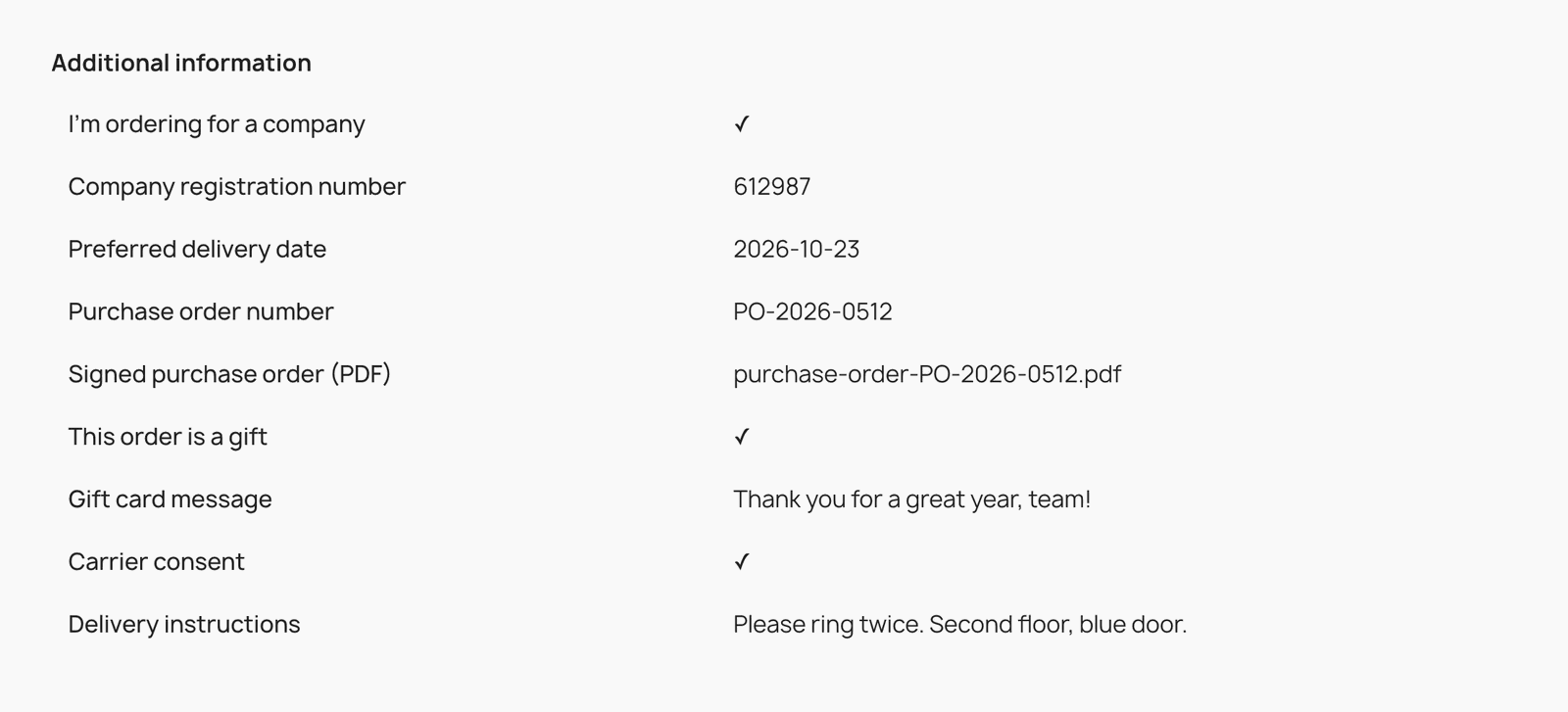
With Customer account & confirmation page on, the customer finds the answers on the confirmation page after ordering, then in their account, under Order history and details, in the details of the order.
In the emails
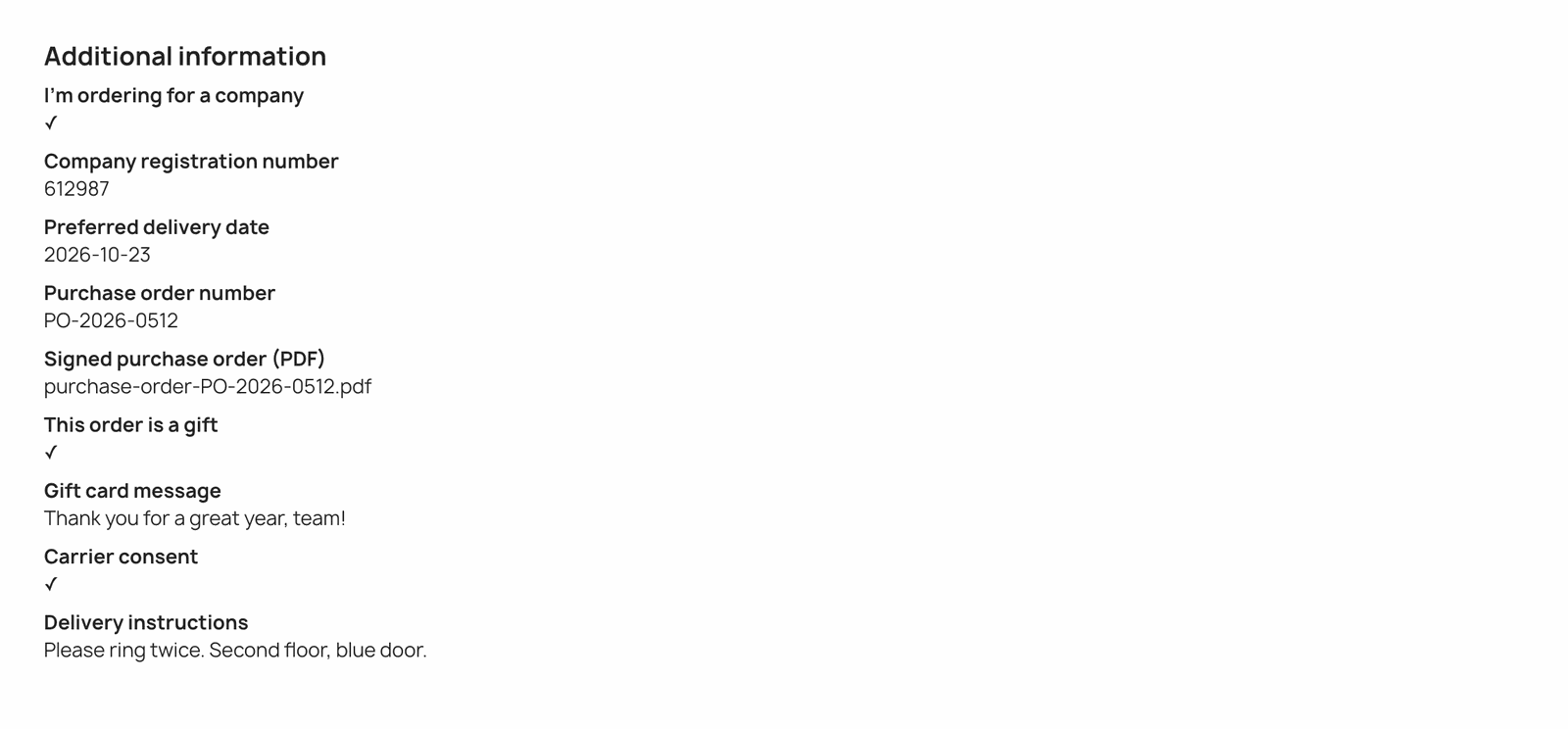
With Order emails on, an “Additional information” block is added to these emails, without changing your email templates:
- to the customer: order confirmation, awaiting bank wire payment, awaiting check payment, payment accepted;
- to you: the “new order” email. PrestaShop sends it through its Mail alerts module (ps_emailalerts), which must be installed and set up with your email address.
The block appears under the payment method in the order confirmation and in the “new order” email, and at the end of the other emails. In Settings, you can stop adding the answers to all customer emails, or to the “new order” email, at once. For an uploaded file, the email shows the file name, not the file itself.
On the invoice and the delivery slip
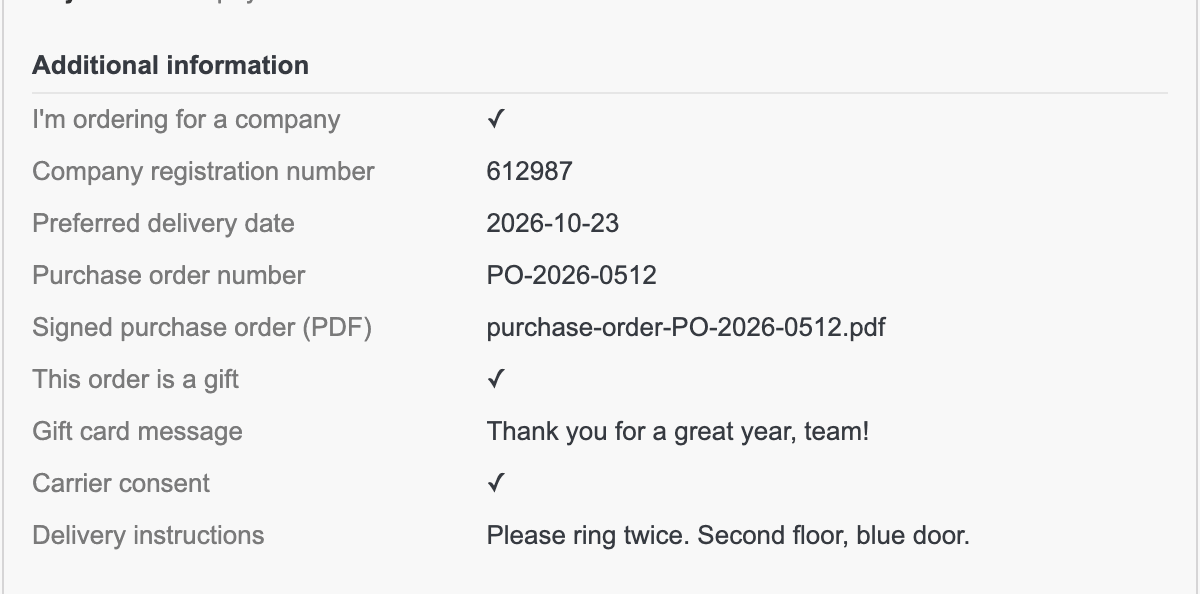
Turn on PDF invoice and/or PDF delivery slip in the field. An “Additional information” block then appears at the bottom of the document. Invoices and delivery slips are built when you open them, so an answer also appears on documents of past orders.
The invoice and the delivery slip are included from the Starter plan.
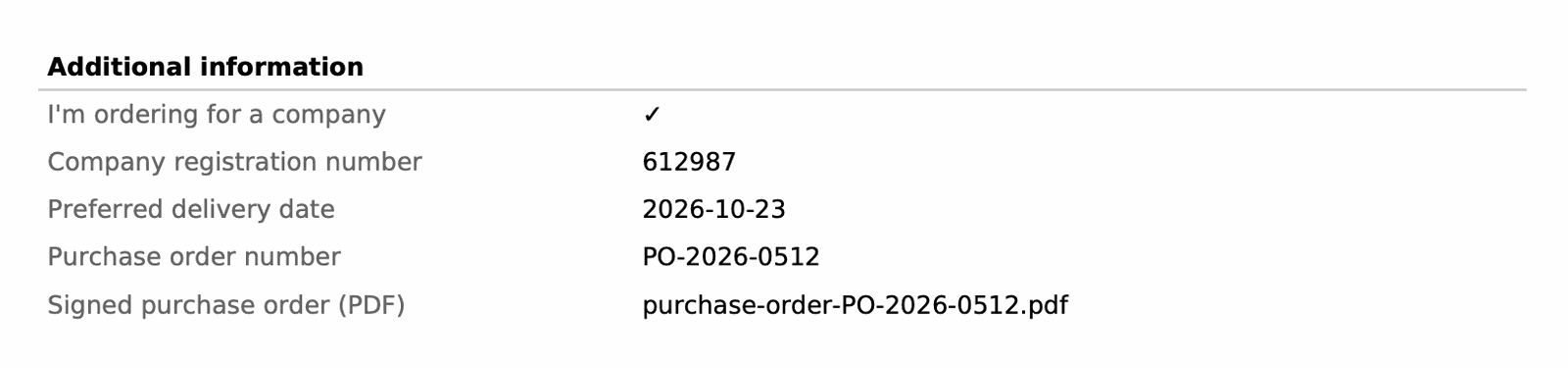

If you change or delete a field
- The label is recorded with each answer. If you rename a field later, past orders keep the label the customer saw.
- Deleting a field never deletes the answers already attached to orders. They stay visible on the order page of your back office, on the Collected data page and in the export, but no longer on the customer’s pages, in emails or on documents.
- If an order is split into several orders (one per carrier), each order keeps the answers.
9. Collected data and CSV export
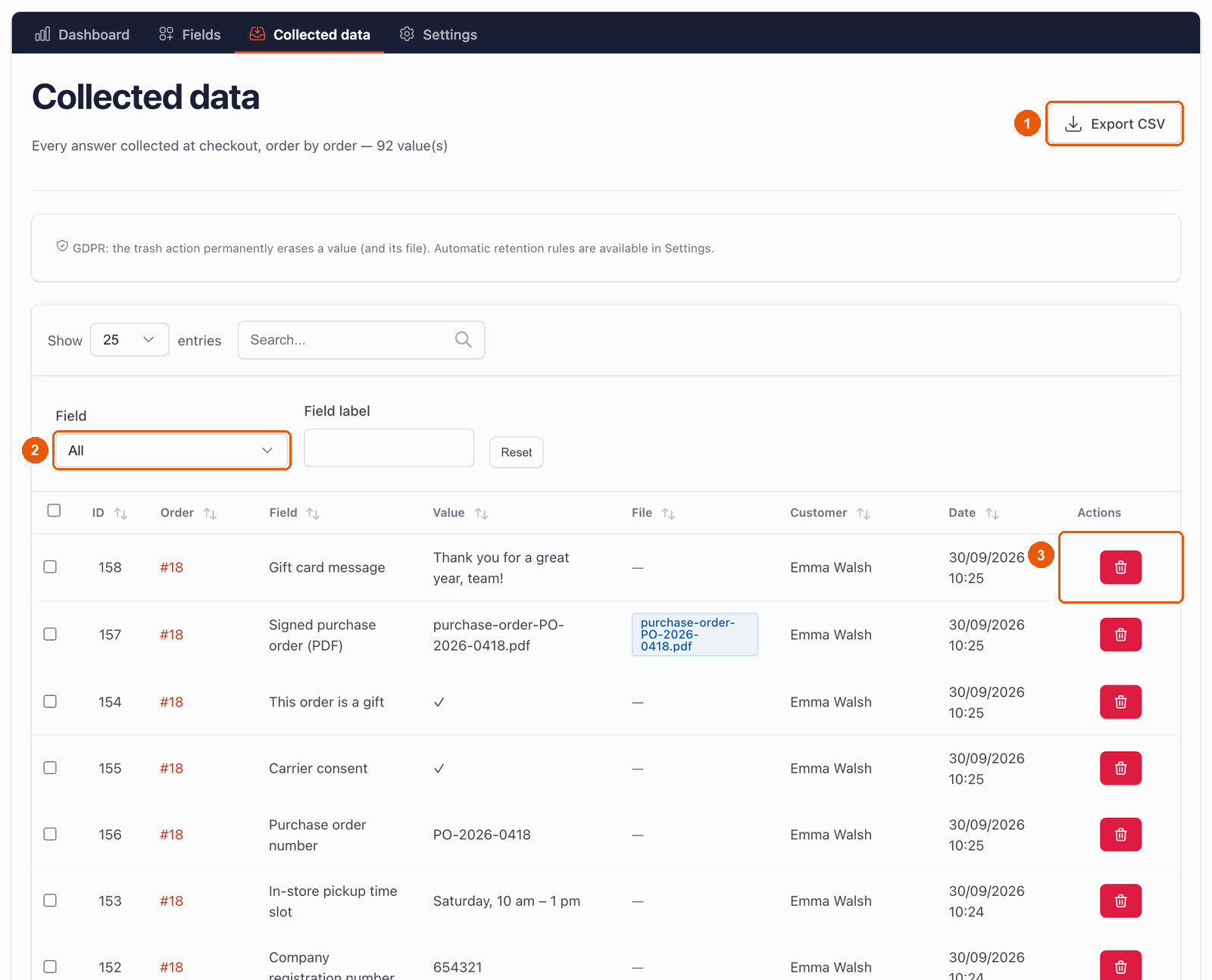
The Collected data page lists the answers of your orders, most recent first: order, field, answer, file, customer and date. It also shows answers still in carts, marked Cart (not ordered): by default, they are deleted after 30 days if the cart never becomes an order (see GDPR). You can search, filter by field (2) and open the order.
Exporting to a spreadsheet
Click Export CSV (1). You get a file with one row per order, which opens in Excel, LibreOffice or Google Sheets. It contains:
- the order: number, reference, date, status, carrier, payment method, totals and currency;
- the customer: name, email, delivery and invoice addresses;
- the products: quantity, name and reference;
- then one column per field, with the answers.
The columns are separated by semicolons. The file is encoded so that accented letters display correctly in Excel. Any text that starts with =, +, - or @ gets an apostrophe in front, so your spreadsheet never runs it as a formula. Plain numbers are left as they are.
The CSV export is included from the Starter plan.
The export contains personal data (names, emails, addresses). Store the file safely and delete it when you no longer need it.
10. File uploads
With a File upload field, the customer attaches a document to the order: a signed purchase order, a logo to print, a drawing… They click Choose a file. The file is sent at once; the customer can remove it with the × and choose another one.
The File upload field is included in the Business plan.
Which files are accepted
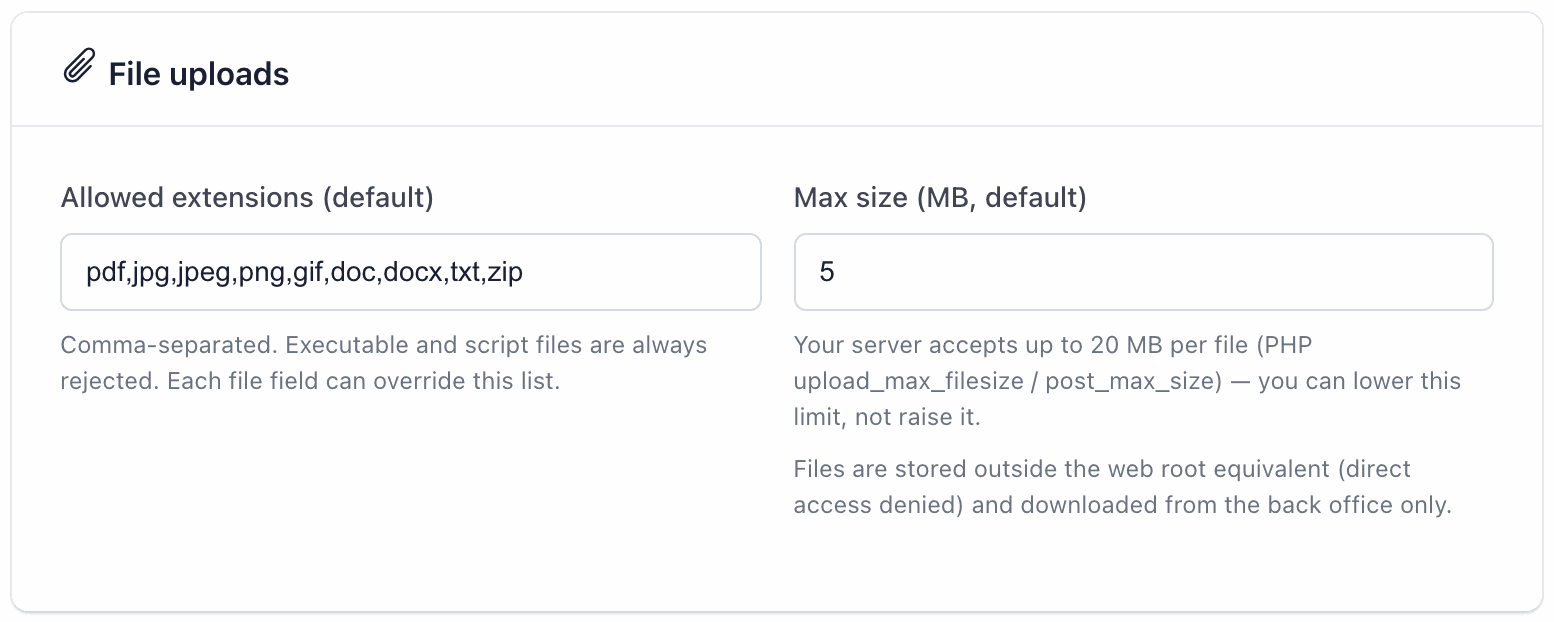
- Extensions: by default
pdf, jpg, jpeg, png, gif, doc, docx, txt, zip. You can change this list for all fields in Settings, or for one field in its own settings (Allowed extensions). - Size: 5 MB per file by default, set in Settings. To accept larger files, raise this value, up to the limit of your server, which the module displays; to go beyond, ask your host to increase the PHP upload limits (
upload_max_filesizeandpost_max_size). In a field’s own settings, you can set a lower limit for that field. - Always refused, whatever your list: programs and scripts (for example
php,js,exe,sh,html,svg). - Real content checked: for common formats (PDF, images, Word and Excel documents, text, CSV, ZIP), the module checks that the file really is what its extension says, when your server provides the PHP “fileinfo” extension (most hosts do). A renamed program is refused.
Where the files are kept
The files are stored in the modules/easycheckoutfields/uploads/ folder of your shop, under random names without extension. You download them from your back office only: from the order page or from the Collected data page. Emails, invoices and the export only show the file name.
The folder contains a rule that closes it to visitors on Apache servers, the most common ones. If your server runs Nginx, ask your host to block web access to this folder.
Include this folder in your backups. If you delete the module folder from your server by hand, the files go with it.
11. GDPR and personal data
The answers to your fields can be personal data. The module gives you the tools to respect the GDPR:
- GDPR consent field. Write your text, with a link to your privacy page if you want. The box is always required, and the ✓ is stored with the order as a record of the consent.
- Official GDPR module (psgdpr). If you use PrestaShop’s free GDPR module, Easy Checkout Fields appears in its list. When a customer asks for their data, the export includes their answers. When they ask to be forgotten, their answers and files are deleted.
- Customer deletion. When you delete a customer in PrestaShop, their answers and files are deleted too.
- Answers of abandoned carts. Answers saved in carts that never became orders are deleted after 30 days by default.
- Anonymisation. You can have the answers of old orders replaced by “[anonymized]” (and the files deleted) after a number of months.
- Deletion one by one. On the Collected data page, the trash icon (3) permanently deletes an answer and its file.
The retention periods are set in Settings > GDPR & data retention (see below). Ask only for the information you need: it is the first rule of the GDPR, and your customers will thank you.
12. Settings
The Settings page sets the global behaviour of the module. Click Save settings at the bottom after any change.
Checkout display
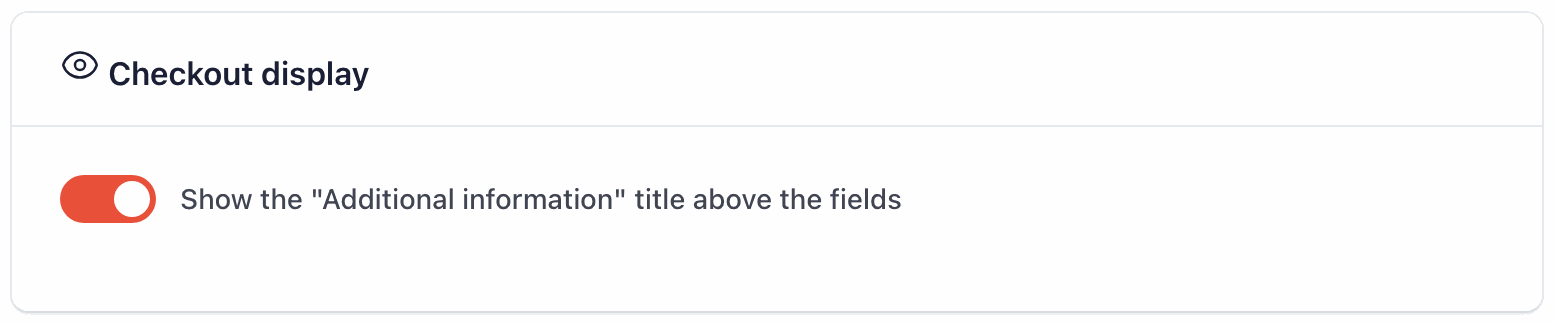
Show the “Additional information” title above the fields: shows or hides this title above each group of fields in the checkout.
Emails
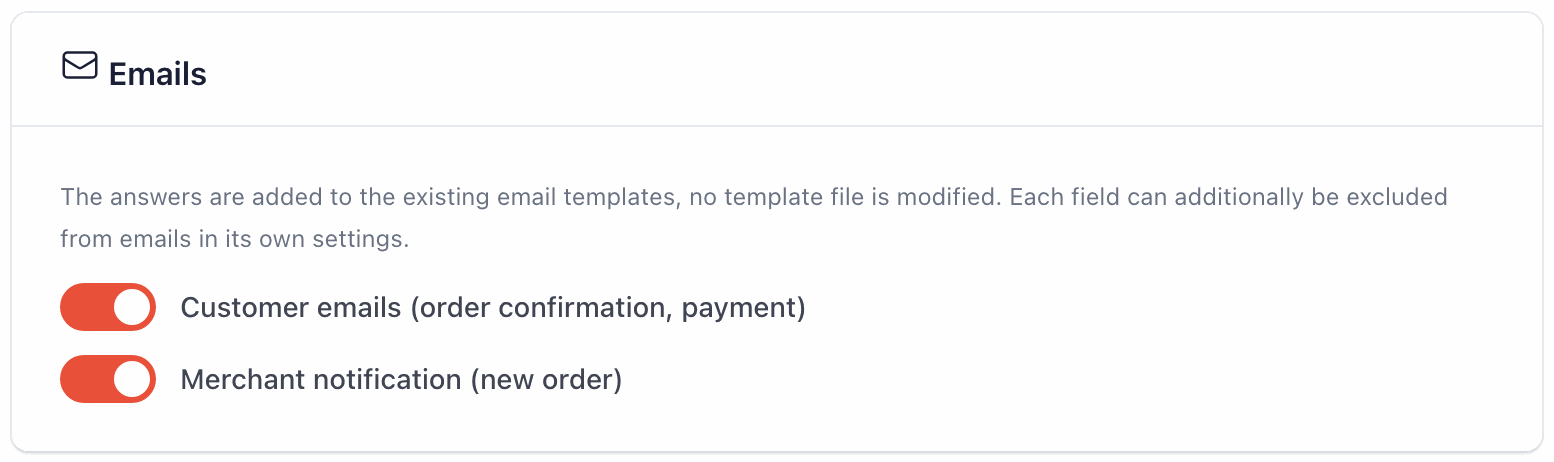
- Customer emails (order confirmation, payment): adds the answers to the emails sent to the customer. Turned off, the emails are still sent, without the answers.
- Merchant notification (new order): adds the answers to the “new order” email sent to you.
Each field can also be left out of emails with its own Order emails switch.
File uploads
- Allowed extensions (default): the extensions accepted by the file fields, separated by commas. A field can have its own list.
- Max size (MB, default): the maximum size of a file. The note below the box shows the limit of your server. A field can have a lower limit, not a higher one.
GDPR & data retention
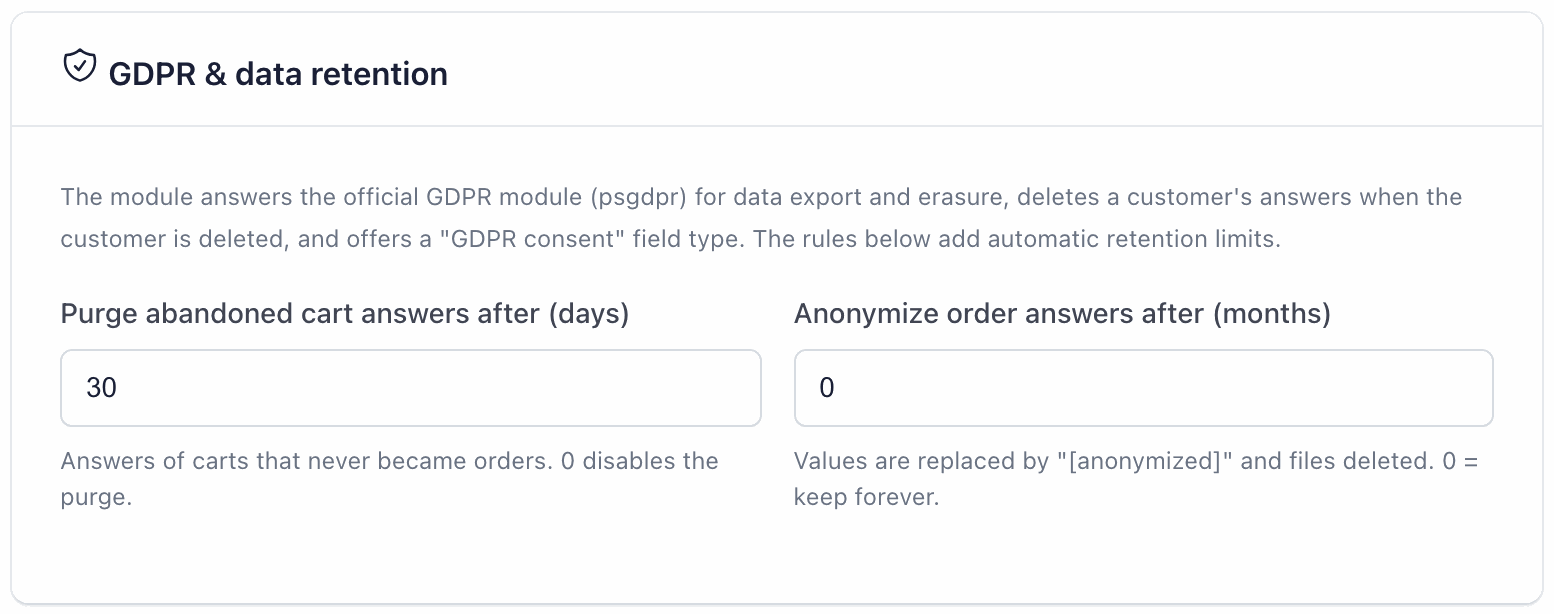
- Purge abandoned cart answers after (days): 30 by default. 0 turns the purge off.
- Anonymize order answers after (months): 0 by default, which keeps the answers. For example, 36 anonymises the answers of orders older than 3 years.
Advanced
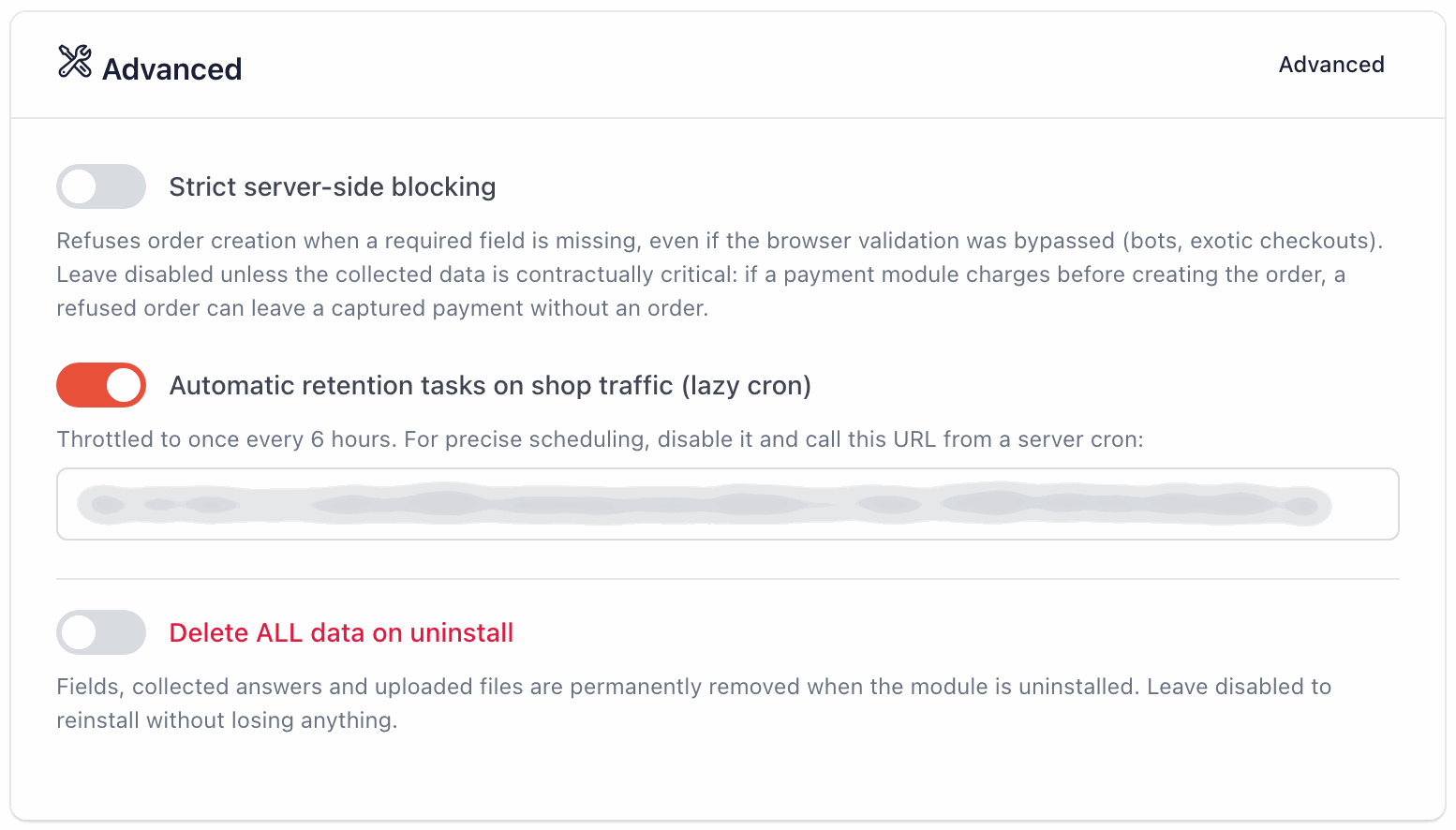
- Strict server-side blocking (off by default): refuses to create the order when a required field is missing, even if the checks in the browser were bypassed (robots, unusual checkouts). Leave it off unless the information is essential to your contract. Warning: with a payment module that takes the money before creating the order, a refused order can leave a payment without an order.
- Automatic retention tasks on shop traffic (lazy cron) (on by default): the purge and the anonymisation run on their own, at most once every 6 hours, when visitors browse your shop. If you prefer a fixed schedule, turn it off and ask your host to call the address shown below the switch regularly (a “cron job”). Keep this address private.
- Delete ALL data on uninstall (off by default): if you turn it on, uninstalling the module permanently deletes the fields, the answers and the uploaded files.
Several shops (multistore)
With the PrestaShop multistore feature, each shop has its own fields and answers. Choose the shop in the shop selector at the top of the back office before managing its fields.
13. Questions and troubleshooting
My field does not appear in the checkout
Check, in this order:
- The field is Active (Status column of the Fields list).
- You are looking at the right step: the field only appears at the step chosen in its settings.
- Its Display targeting matches your test cart (products, categories, group, language, carrier).
- Its conditions are met. A field that depends on the carrier or the payment method only appears once that choice is made.
- Your theme uses the native checkout. A one-page checkout module or a heavily modified checkout may not show the fields.
On the Free plan, a field whose type, targeting or display conditions are not included is hidden, and only the first 3 fields the plan can show appear in the checkout.
A customer cannot place the order
A visible required field is empty, or an answer has a wrong format. The field is shown in red with the reason, for example “This field is required.”, and the page scrolls to it. A hidden field never blocks an order. If customers often get stuck, ask yourself whether the field really needs to be required.
If you turned on Strict server-side blocking in Settings, PrestaShop can also refuse the order with the message “Please fill in the required information before placing your order.”.
A required Yes / No field blocks customers who answer “no”
That is normal: a required Yes / No box must be ticked. For a real yes/no question, leave it optional, or use a Radio buttons field with the choices “Yes” and “No”.
The answers are missing from the “new order” email I receive
- Check that the PrestaShop Mail alerts module is installed and set up with your email address: it sends this email.
- Check that Merchant notification (new order) is on in Settings, and Order emails in the field.
- An optional field left empty is not shown in emails.
The answers are missing from the invoice or the delivery slip
Turn on PDF invoice or PDF delivery slip in the Show the answer in card of the field, then open the document again. An optional field left empty is not shown.
These two switches are included from the Starter plan.
My condition on the carrier does not work
When you edit a carrier, PrestaShop may give it a new ID, but the module recognises the carrier by its first ID, the one it had when it was created. If you have edited the carrier since, type that first ID. If you do not know it, use Display targeting > Carriers for a field at step 4: there you tick the carrier by its name.
My condition on the payment method does not work
The value must be the technical name of the payment module, not the name shown to customers: ps_wirepayment, not “Bank transfer”. Also check that the field is at step 4, where the payment method is chosen.
A customer’s file is refused
The message says why. “This file type is not allowed.”: the extension is not in the list, or the content of the file does not match its extension. “This file is too large.” (or “This file is too large (5 MB maximum).”): the file is bigger than the limit. Add the extension to the list if it is safe, or raise the maximum size in Settings within your server’s limit. Programs and scripts are always refused.
The module’s back office is in English
The back office of the module exists in English and French. It follows the language of the logged-in employee: in any language other than French, it is in English. Your customers, however, see the module’s texts in English, French, Spanish, Italian, German or Polish.
On PrestaShop 1.7.6 and 1.7.7, these versions do not read translation files from a module’s folder. When it is installed or updated, the module therefore copies its French texts into the app/Resources/translations/ folder of your shop. If that folder cannot be written to (access rights on the server), the copy fails and the module stays in English, even for a French-speaking employee. Ask your host to make the folder writable, then reinstall the module or install the next update. A reinstall keeps your fields and answers, unless Delete ALL data on uninstall is on, but resets the Settings page.
Can I change a field after receiving orders?
Yes. Past orders keep the label and the answer as they were at the time of the order. If you change the choices of a list, past answers keep the text the customer chose.
What does “Duplicate” do?
It creates a copy of the field, with all its settings, and adds “(copy)” to its label. The copy is created inactive, so it does not appear in your checkout before you have adapted it.
On the Free plan, duplicating is refused once the limit of 3 fields is reached.
Does the module slow down my shop?
Its scripts are only loaded on the checkout page, and its style on the checkout and confirmation pages. The automatic GDPR tasks run at most once every 6 hours.
How do I get help?
Click the Support bubble at the bottom right of the module pages to open a ticket: you can attach a screenshot, and the answer comes both there and by email. You can also open a ticket from your customer area on modules.gekkode.com.
14. Glossary
- Back office
- The administration of your shop, where you manage products, orders and modules.
- Cart
- The list of products the customer is about to buy. The answers are saved with it until the order is placed.
- Carrier
- The delivery method chosen at step 3 (a transport company, in-store pickup…).
- Checkout
- The pages where the customer places the order, from the cart to the payment. The native PrestaShop checkout has 4 steps.
- Condition
- A rule that shows a field, or makes it required, only in some cases.
- Cron job
- A task that your server runs automatically at regular times, set up by your host.
- CSV
- A simple spreadsheet file, which opens in Excel, LibreOffice or Google Sheets.
- Customer group
- A family of customers in PrestaShop (Visitor, Guest, Customer, or your own groups, such as “Professionals”).
- Delivery slip
- The PDF document that goes with the parcel.
- Display targeting
- Criteria (products, categories, groups, languages, carriers) that reserve a field for some carts or customers.
- Extension
- The end of a file name that tells its type:
.pdf,.jpg… - Field
- A question you add to the checkout.
- GDPR
- The European regulation on personal data.
- Guest checkout
- Ordering without creating a customer account.
- Help text
- A small note shown under a field.
- ID
- The number PrestaShop gives to each product, category, carrier, country or group. It appears in the ID column of the lists.
- Label
- The question shown above a field.
- Multistore
- A PrestaShop feature to run several shops from one back office.
- Operator
- The way a rule compares: is, is not, contains, is greater than…
- Placeholder
- A grey example shown inside an empty box, which disappears when the customer types.
- psgdpr
- PrestaShop’s official GDPR module, which handles the customers’ requests for access and deletion.
- Required field
- A field the customer must answer to place the order, when it is displayed.
- Technical name
- The internal name of a module, in lower case, such as
ps_wirepayment. - ZIP
- A compressed file that contains the module. You upload it as it is, without unzipping it.